> ## Documentation Index
> Fetch the complete documentation index at: https://docs.ai21.com/llms.txt
> Use this file to discover all available pages before exploring further.
# Data Connectors
> How to Use Data Connectors in AI21 Studio
## Overview
Data Connectors allow you to ingest external data into your AI21 Maestro workspace. Once connected, this data can then be indexed and used to ground responses in external knowledge, enabling your AI applications to provide more accurate, relevant, and up-to-date answers.
Through the AI21 Studio UI, users can easily connect data sources manage ingestion, and monitor indexing via the **File Library**.
This guide walks you through the process of using Data Connectors via the AI21 Studio.
## Available Data Connectors for Enterprise Users
Below is a complete list of all data connectors available to enterprise users.
* Amazon S3
* Box
* Confluence
* Dropbox
* Google Drive
* Browse Website
* Intercom
* OneDrive
* Microsoft Teams
* Notion
* ServiceNow
* SharePoint
* Zendesk
## How to Use Data Connectors: Step by Step
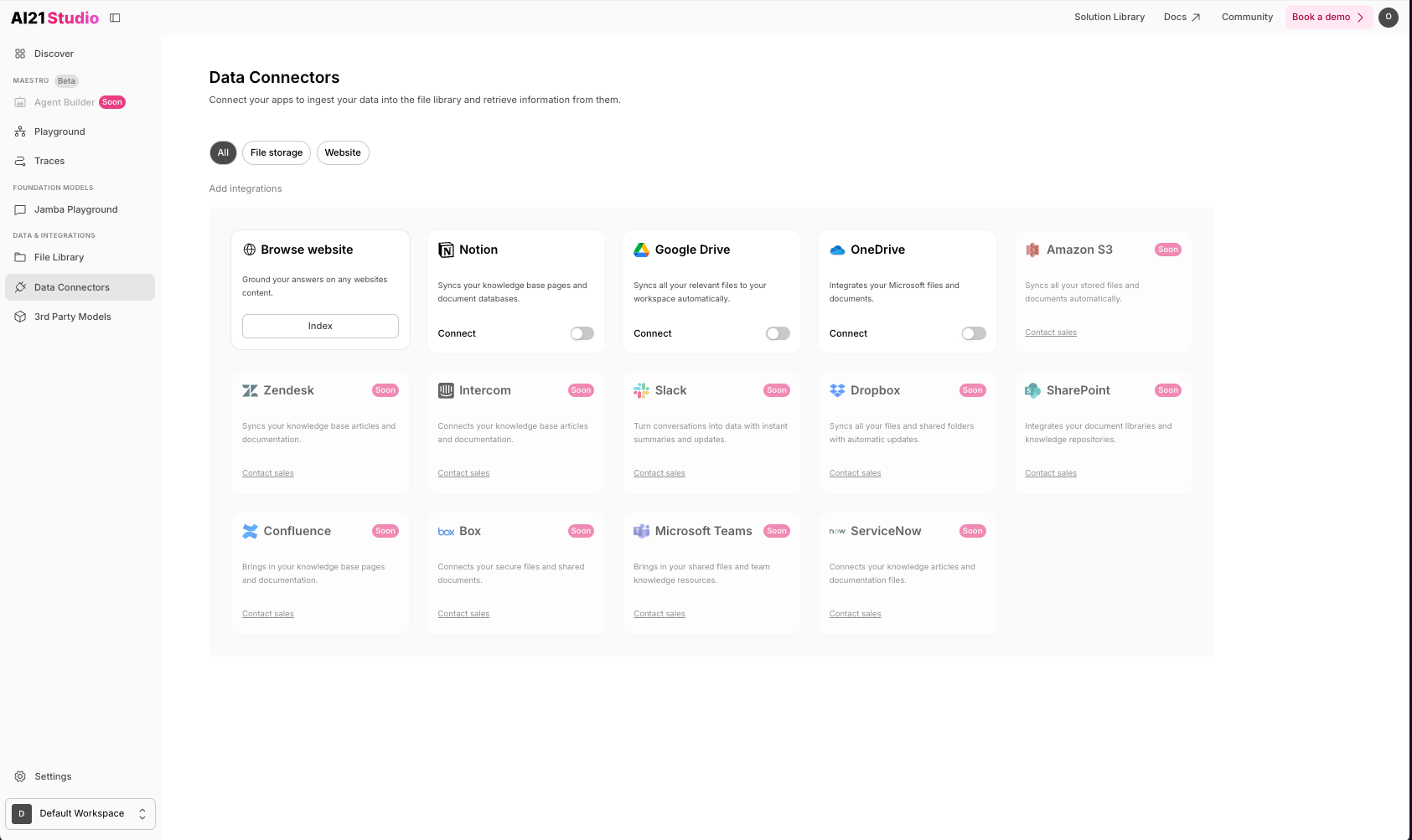
### Step 1: Open the Data Connectors Section
Navigate to [Data Connectors](https://studio.ai21.com/v2/workspaces/429d8ce9-0f35-4626-a48c-231d28db34a8/integrations) from the left-hand menu in AI21 Studio.
 ### Step 2: Choose the Data Connector
On the Data Connectors page, you'll see a list of available integrations.
* **Browse Website** is available for all users.
* **Enterprise customer**s are eligible for all connectors.
* If you require any additional connectors, please contact our [support team](mailto:support@ai21.com)
### **Configure File Storage Data Connectors**
### Step 2: Choose the Data Connector
On the Data Connectors page, you'll see a list of available integrations.
* **Browse Website** is available for all users.
* **Enterprise customer**s are eligible for all connectors.
* If you require any additional connectors, please contact our [support team](mailto:support@ai21.com)
### **Configure File Storage Data Connectors**
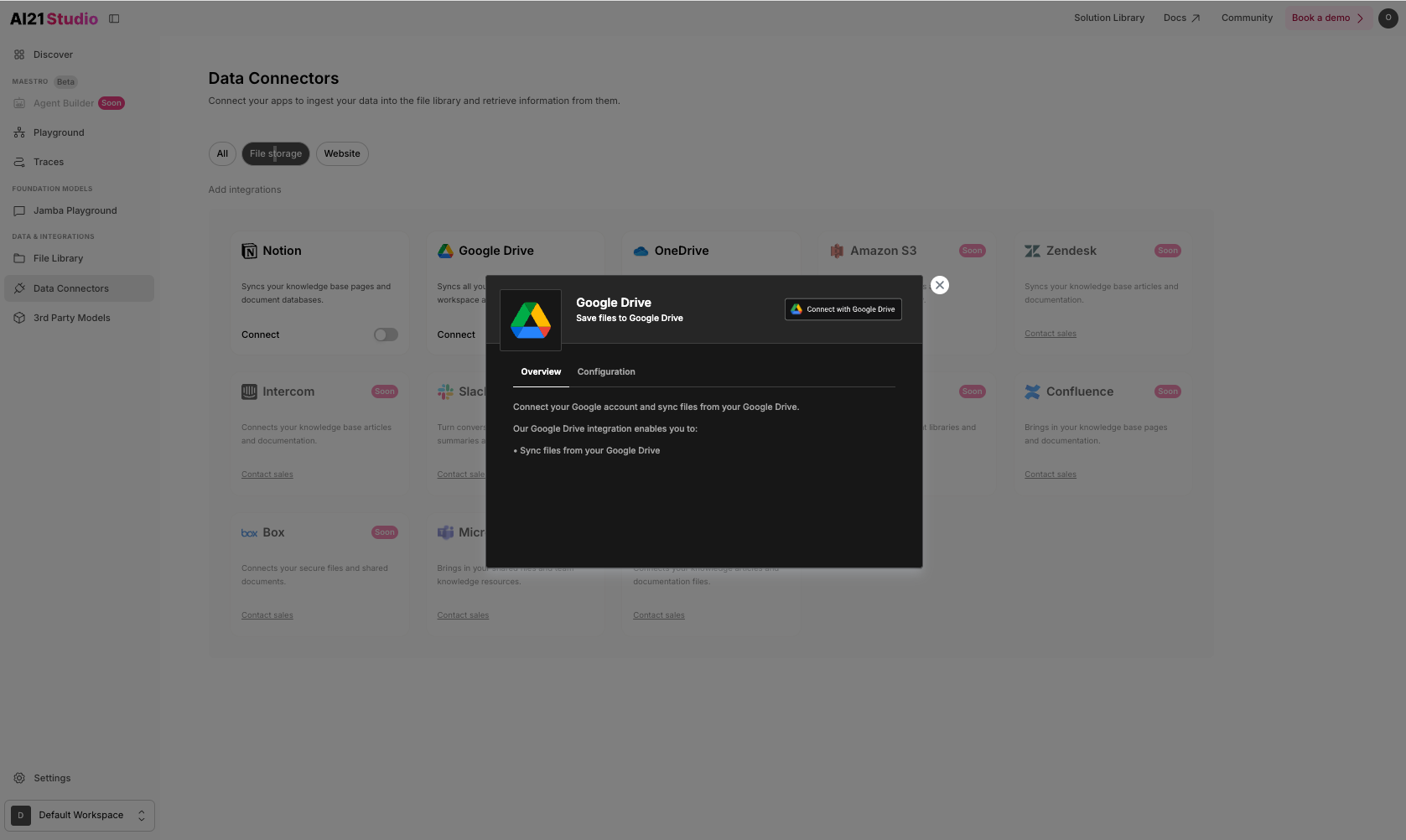
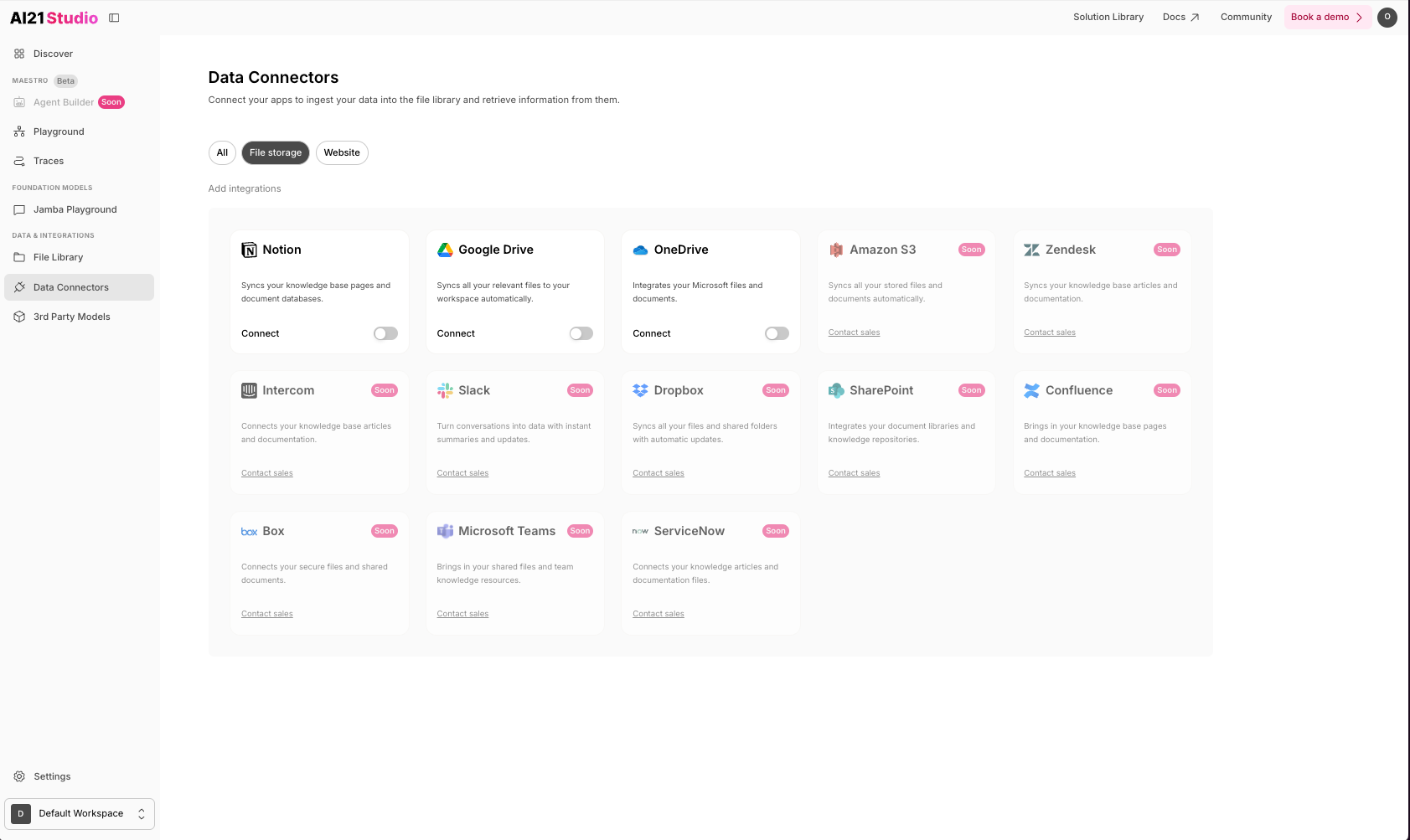 1. Toggle on the requested **File Storage** connector.
2. Authorize the requested data connector.
3. Select and authenticate your user account.
1. Toggle on the requested **File Storage** connector.
2. Authorize the requested data connector.
3. Select and authenticate your user account.
 ### **Configure Browse Website Data Connector**
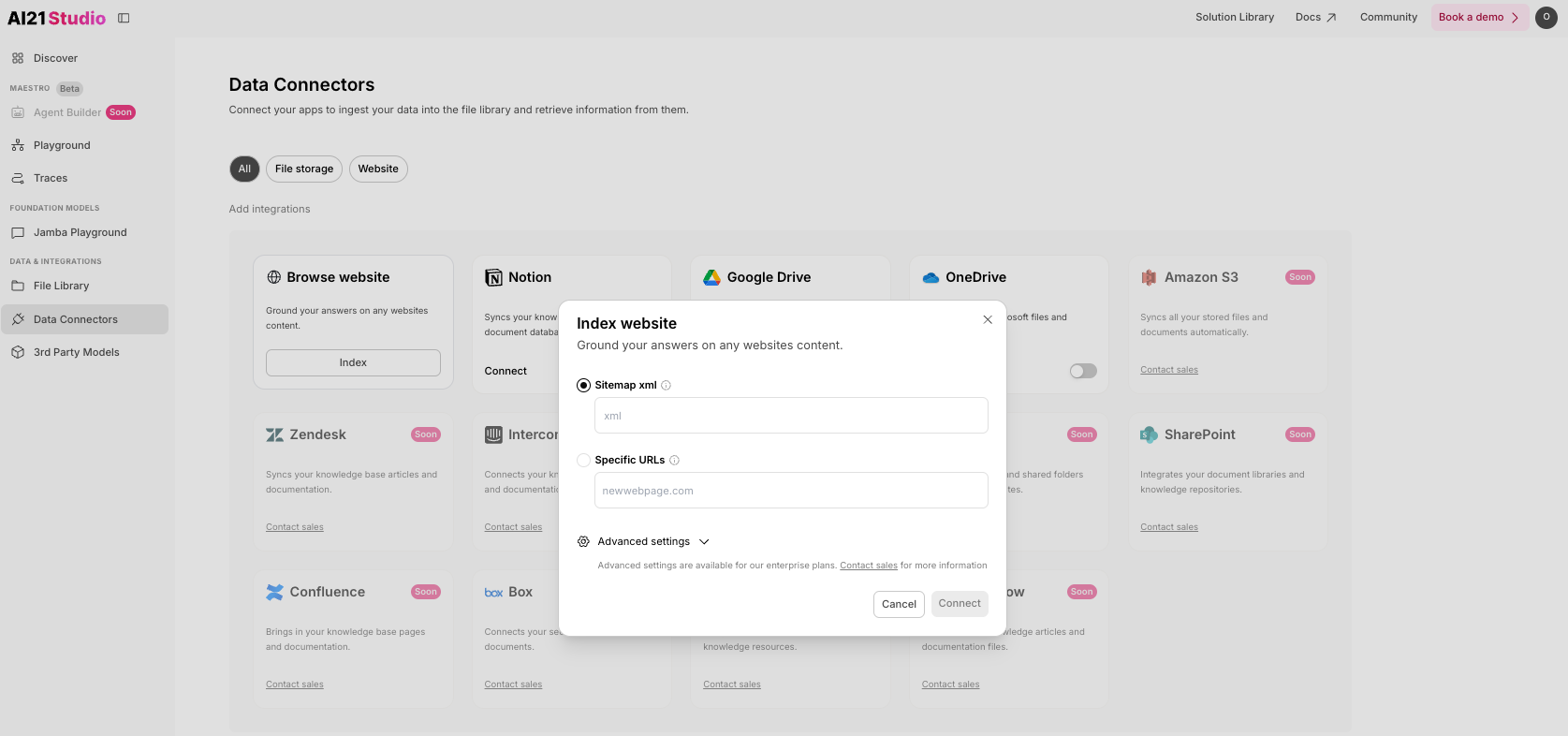
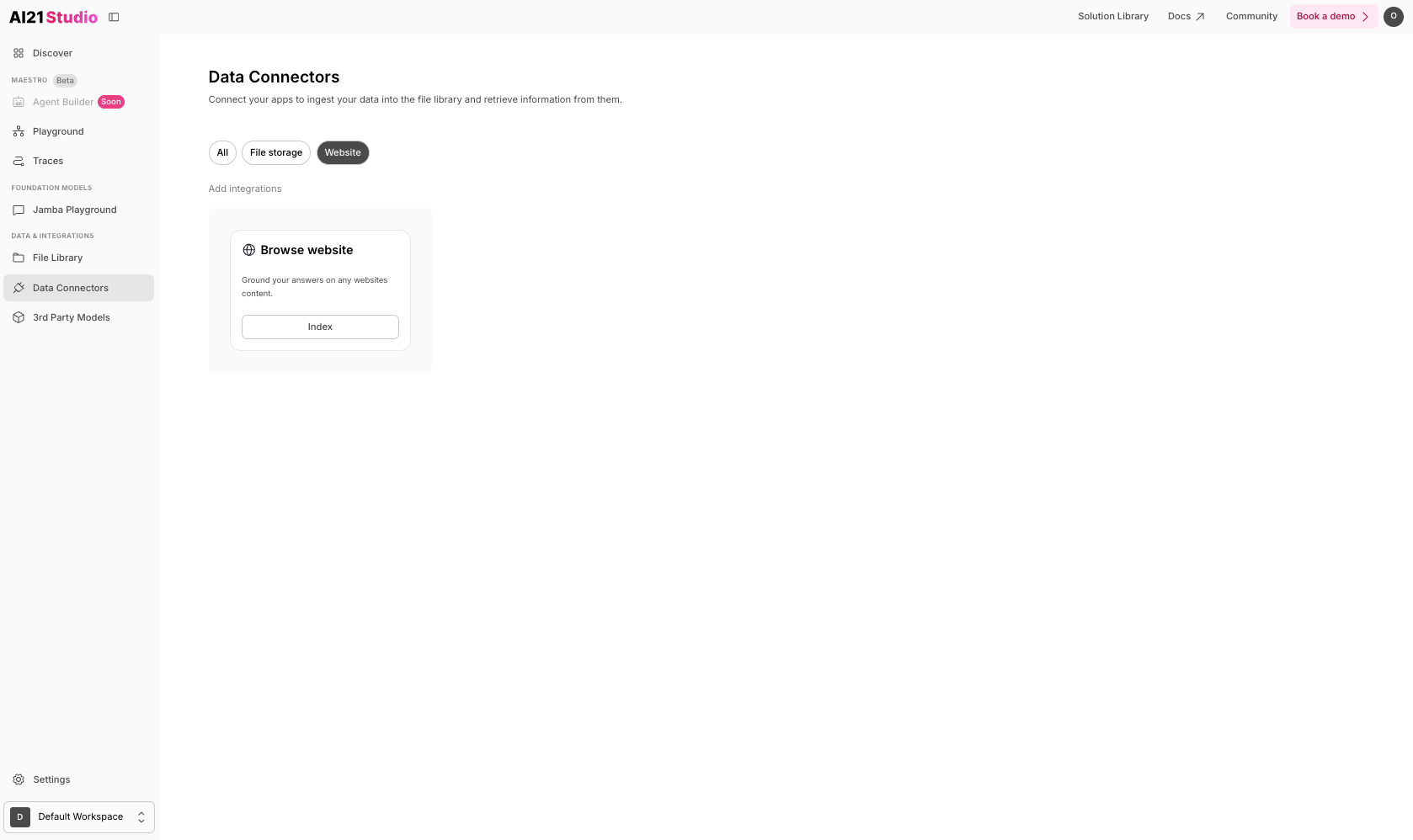 You have two options to connect the Index Website:
**Option A: Sitemap XML**
Paste a sitemap link to ingest content automatically.
Only the first 100 links in the sitemap will be indexed.
You have two options to connect the Index Website:
**Option A: Sitemap XML**
Paste a sitemap link to ingest content automatically.
Only the first 100 links in the sitemap will be indexed.
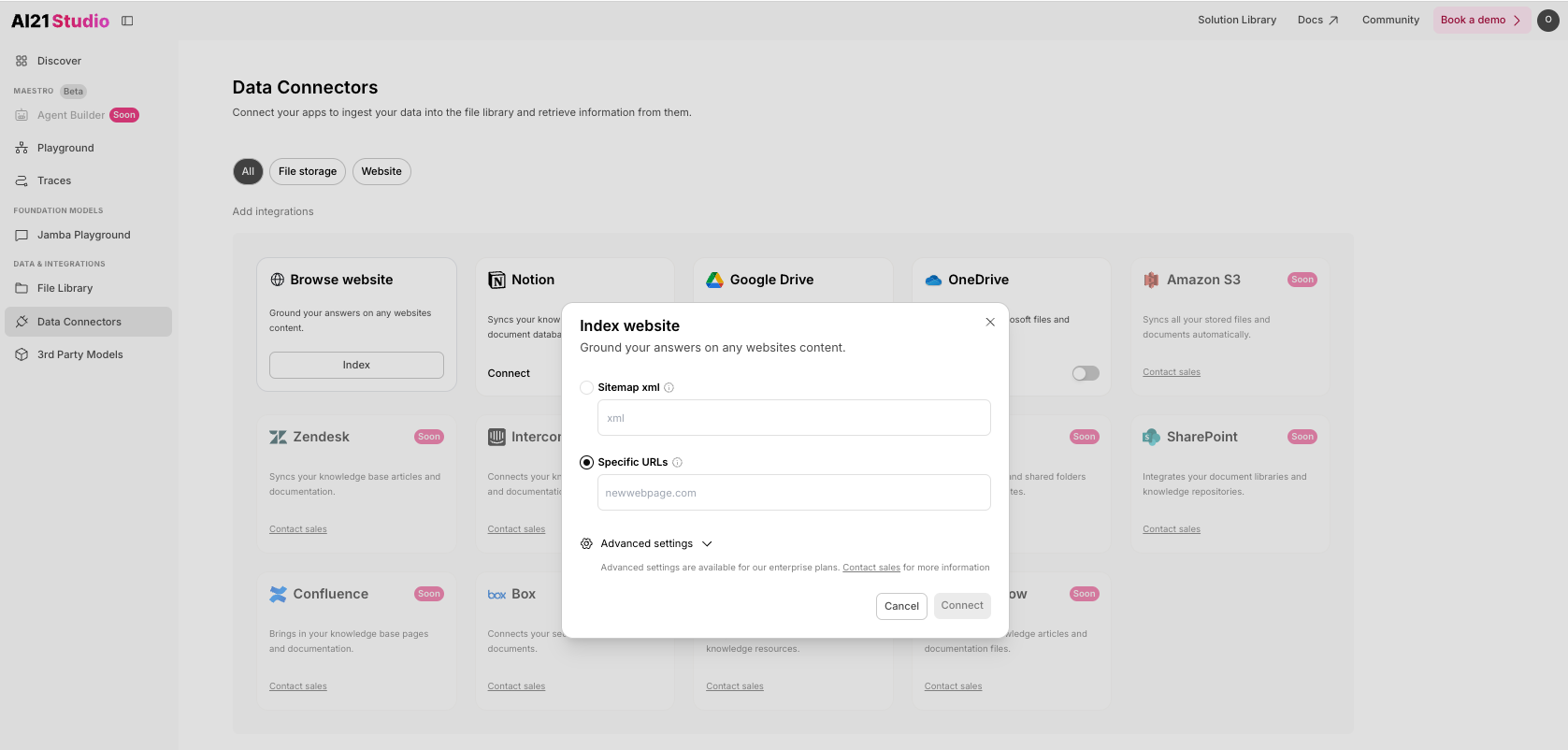
 **Option B: Specific URLs** \
Paste up to 100 URLs. \
When you past the urls, make sure to press enter.
**Option B: Specific URLs** \
Paste up to 100 URLs. \
When you past the urls, make sure to press enter.
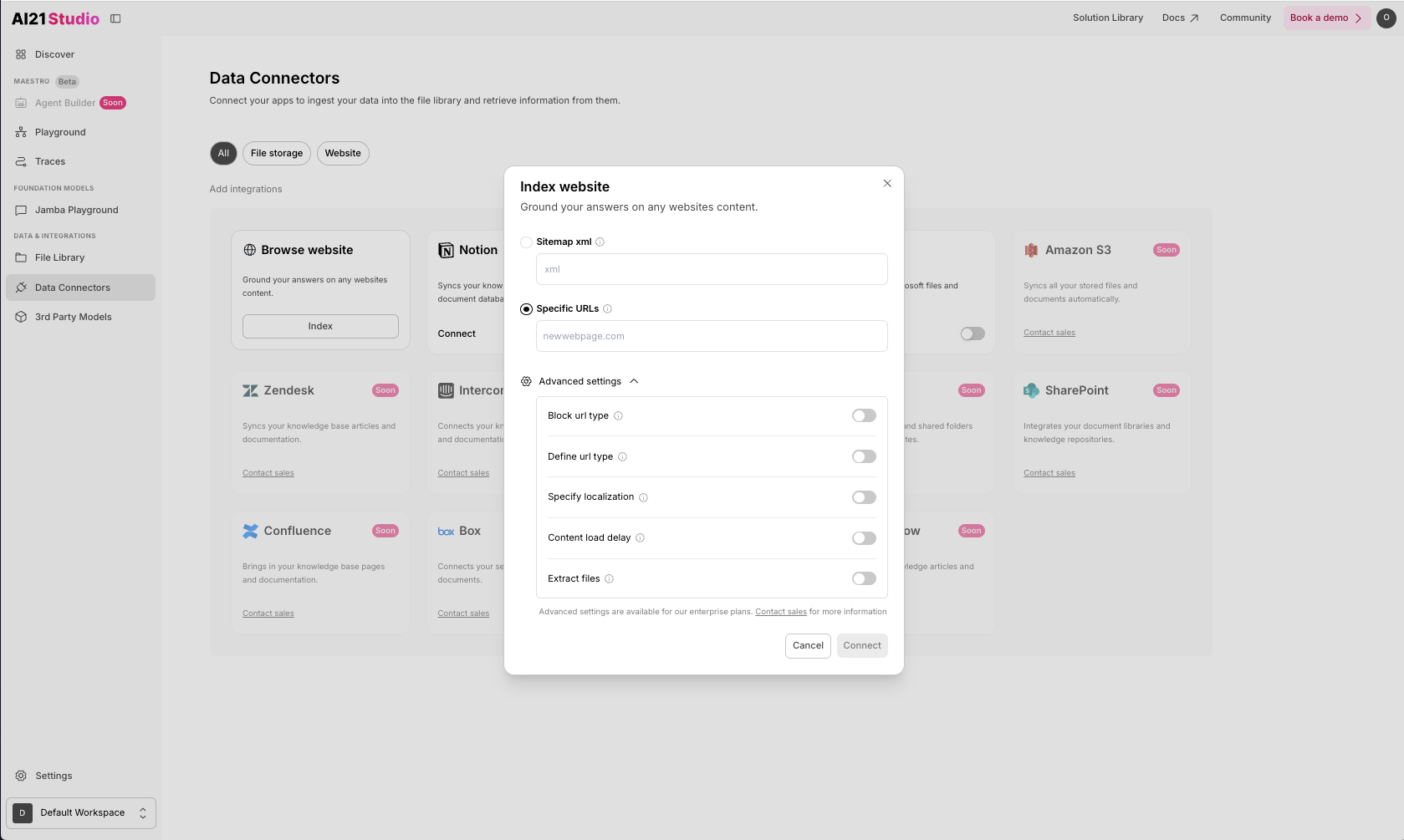
 **Advanced Settings** \
There are additional ingestion options, such as:
* **Block URL Types**
* **Define URL Types**
* **Specify Localization**
* **Content Load Delay**
* **Extract Files (e.g., PDFs, Docs)**
These advanced features are available to Enterprise plan users. [Contact Sales](https://www.ai21.com/contact-sales/) for access.
**Advanced Settings** \
There are additional ingestion options, such as:
* **Block URL Types**
* **Define URL Types**
* **Specify Localization**
* **Content Load Delay**
* **Extract Files (e.g., PDFs, Docs)**
These advanced features are available to Enterprise plan users. [Contact Sales](https://www.ai21.com/contact-sales/) for access.
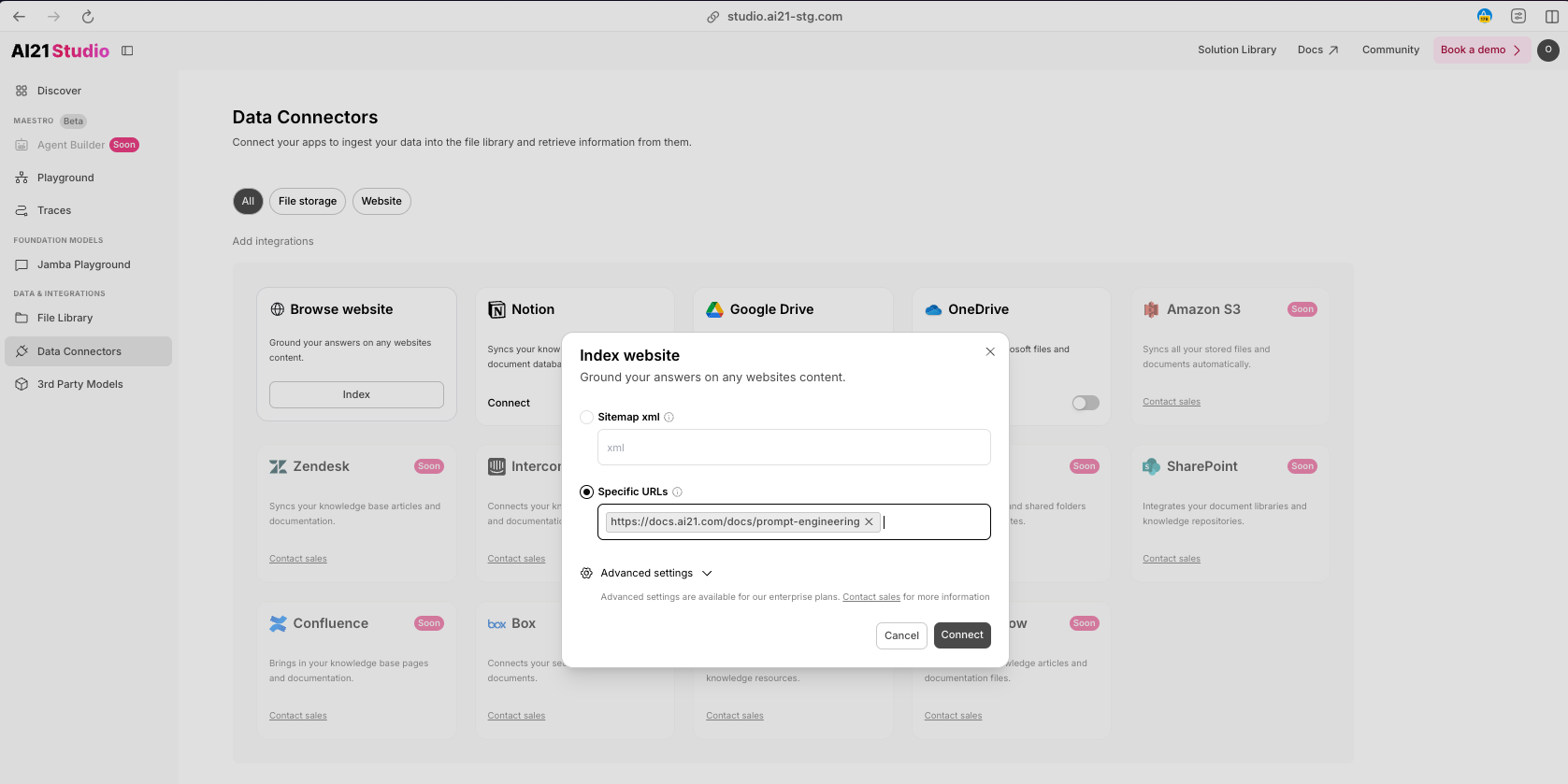
 ### **Step 3: Click ‘Connect’**
Once you’ve pasted a sitemap or the URLs, click **Connect** to start ingesting the data.
### **Step 3: Click ‘Connect’**
Once you’ve pasted a sitemap or the URLs, click **Connect** to start ingesting the data.
 ### **Step 4: View Your Connected Data**
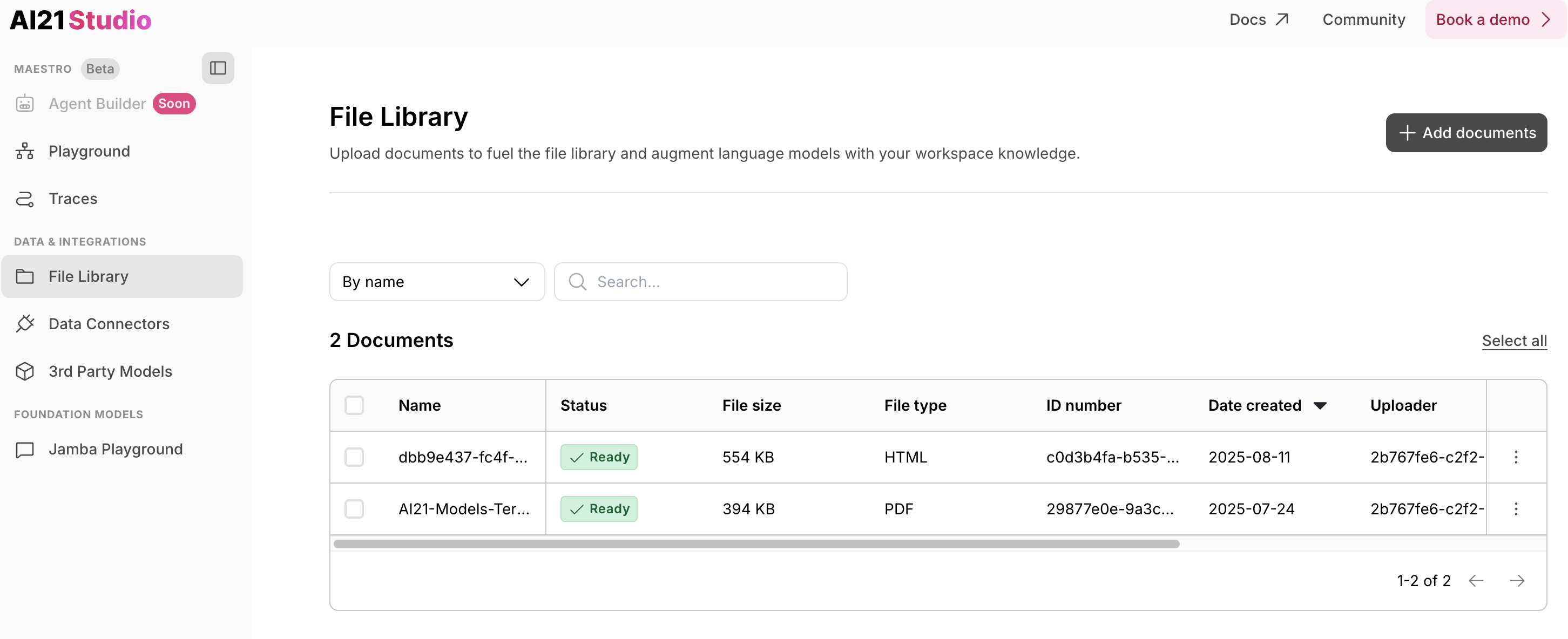
Once the data is connected you’ll see a checkmark (✓) next to it. Navigate to the **File Library** to see your connected data. It will appear in a table showing source, type, and ingestion status.
### **Step 4: View Your Connected Data**
Once the data is connected you’ll see a checkmark (✓) next to it. Navigate to the **File Library** to see your connected data. It will appear in a table showing source, type, and ingestion status.
 ## Next Steps
Use [Data Connectors](https://studio.ai21.com/v2?tab=data_connectors) in AI21 Stuido.
## Next Steps
Use [Data Connectors](https://studio.ai21.com/v2?tab=data_connectors) in AI21 Stuido.