> ## Documentation Index
> Fetch the complete documentation index at: https://docs.ai21.com/llms.txt
> Use this file to discover all available pages before exploring further.
# HTTP Tools
> How to Use HTTP Tools in AI21 Studio
HTTP tools allow AI21 Maestro to call external services directly using standard HTTP requests. They’re best for simple or one-off integrations that don’t require a full MCP server.\
Follow these steps to give your agent access to external APIs.
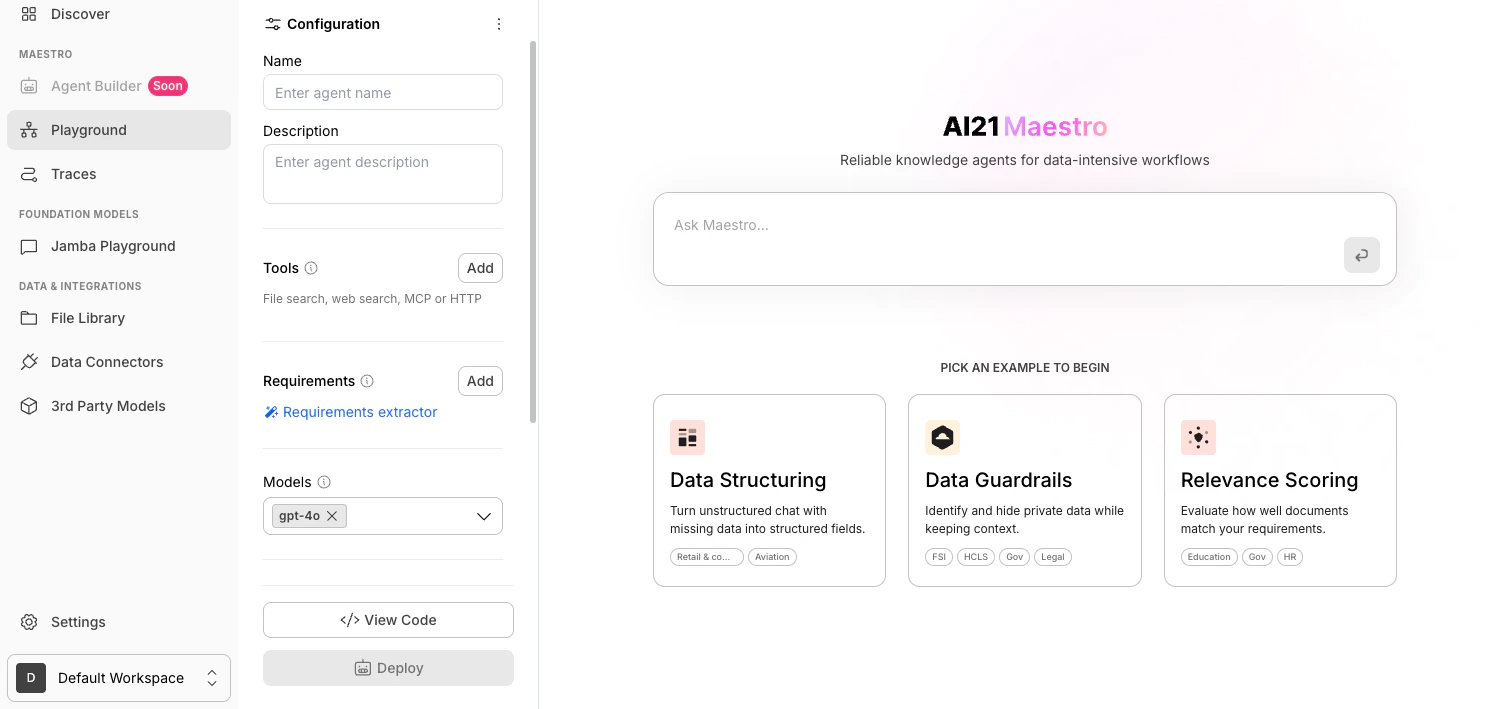
### Step 1: **Go to the Playground Section**
Navigate to Maestro [**Playground**](https://studio.ai21.com/v2?tab=maestro) from the left-hand menu in AI21 Studio.
 ### Step 2: Add a Tool
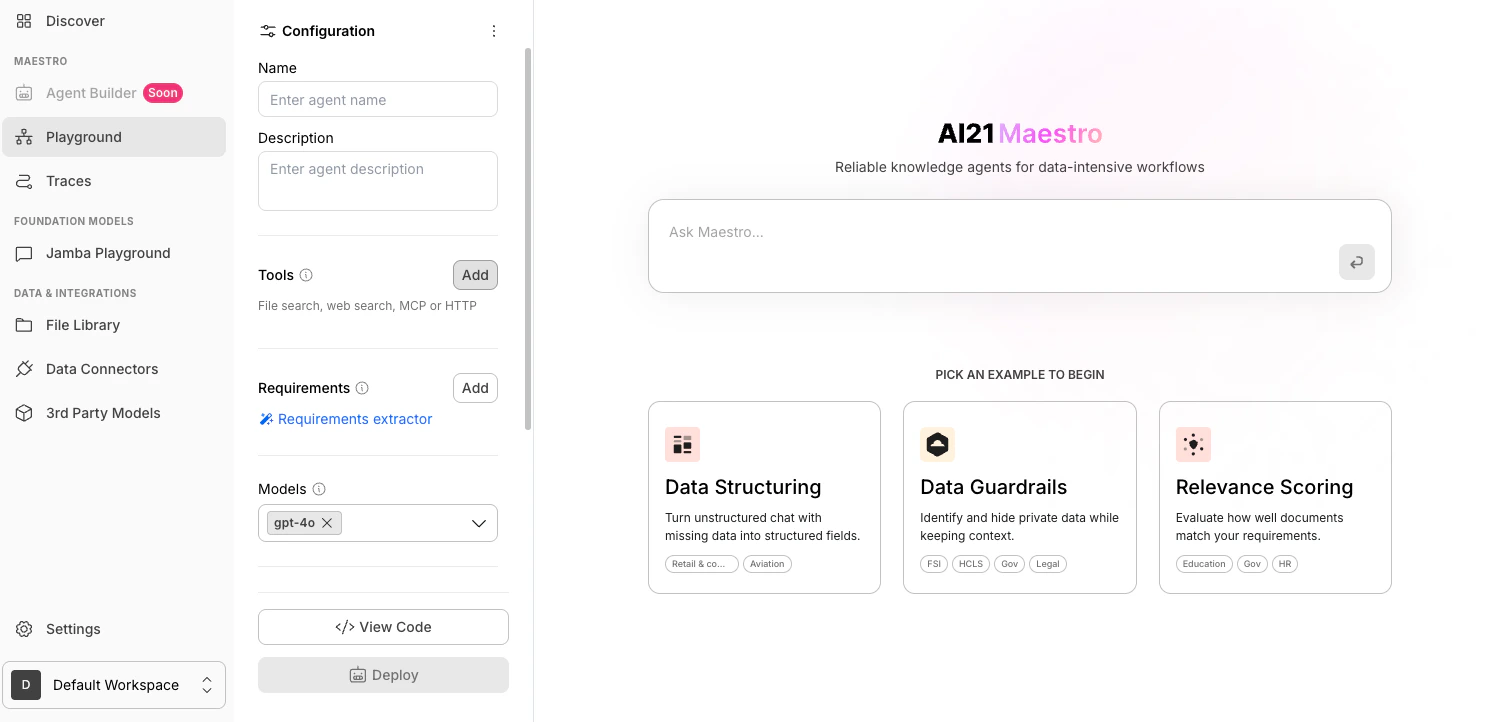
In the **Configuration** panel, go to the **Tools** section and click **Add**.
### Step 2: Add a Tool
In the **Configuration** panel, go to the **Tools** section and click **Add**.
 ### **Step 3: Select HTTP Tools**
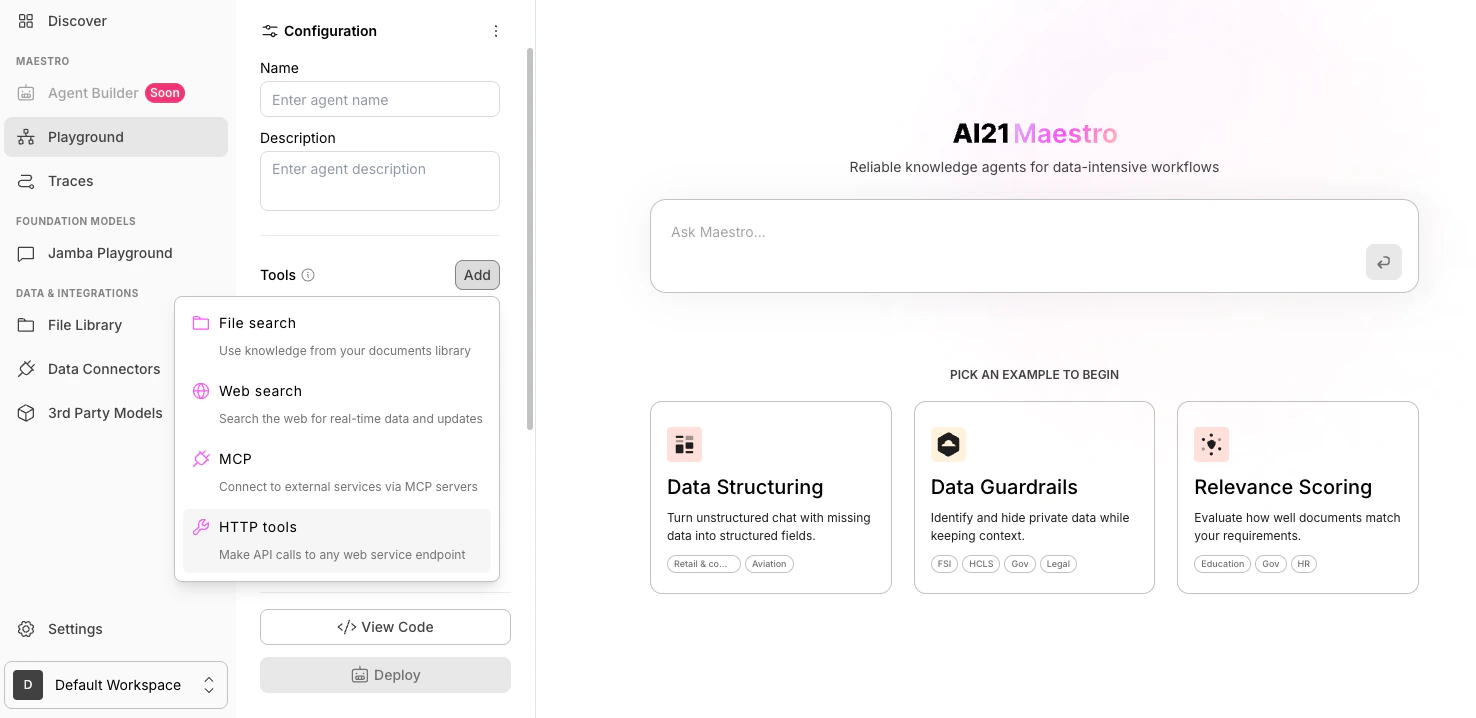
In the tools dropdown, select **MCP**.
### **Step 3: Select HTTP Tools**
In the tools dropdown, select **MCP**.
 ### **Step 4: Fill in the Fields**
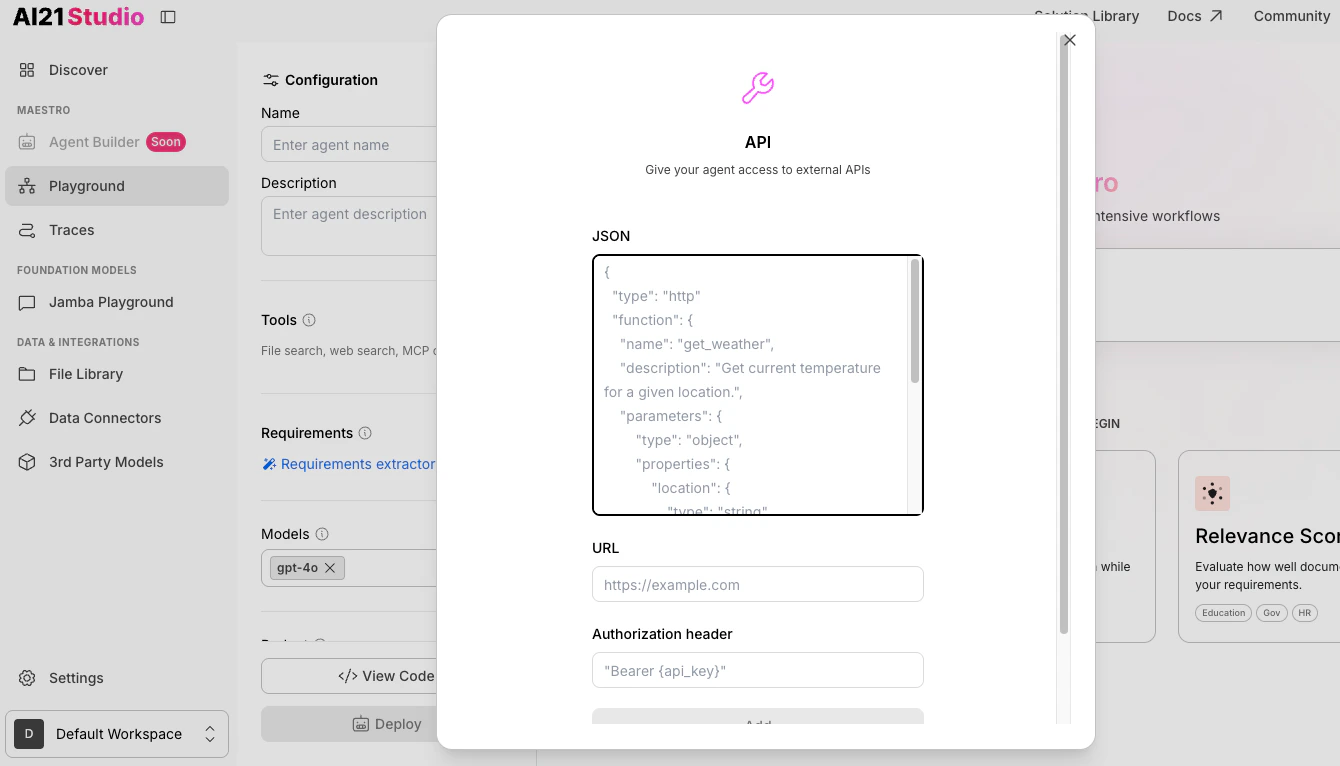
**4.1 Define the JSON Schema**\
Provide the **JSON schema** that describes the API operation you want to connect.
* This schema defines the function name, description, parameters, and their types.
* Use the exact schema of the API you want your agent to call.
### **Step 4: Fill in the Fields**
**4.1 Define the JSON Schema**\
Provide the **JSON schema** that describes the API operation you want to connect.
* This schema defines the function name, description, parameters, and their types.
* Use the exact schema of the API you want your agent to call.
 **4.2 Enter the URL**\
Add the **API endpoint URL** that the tool should call.\
Use the full URL, for example: `https://api.example.com/weather`.
**4.2 Enter the URL**\
Add the **API endpoint URL** that the tool should call.\
Use the full URL, for example: `https://api.example.com/weather`.
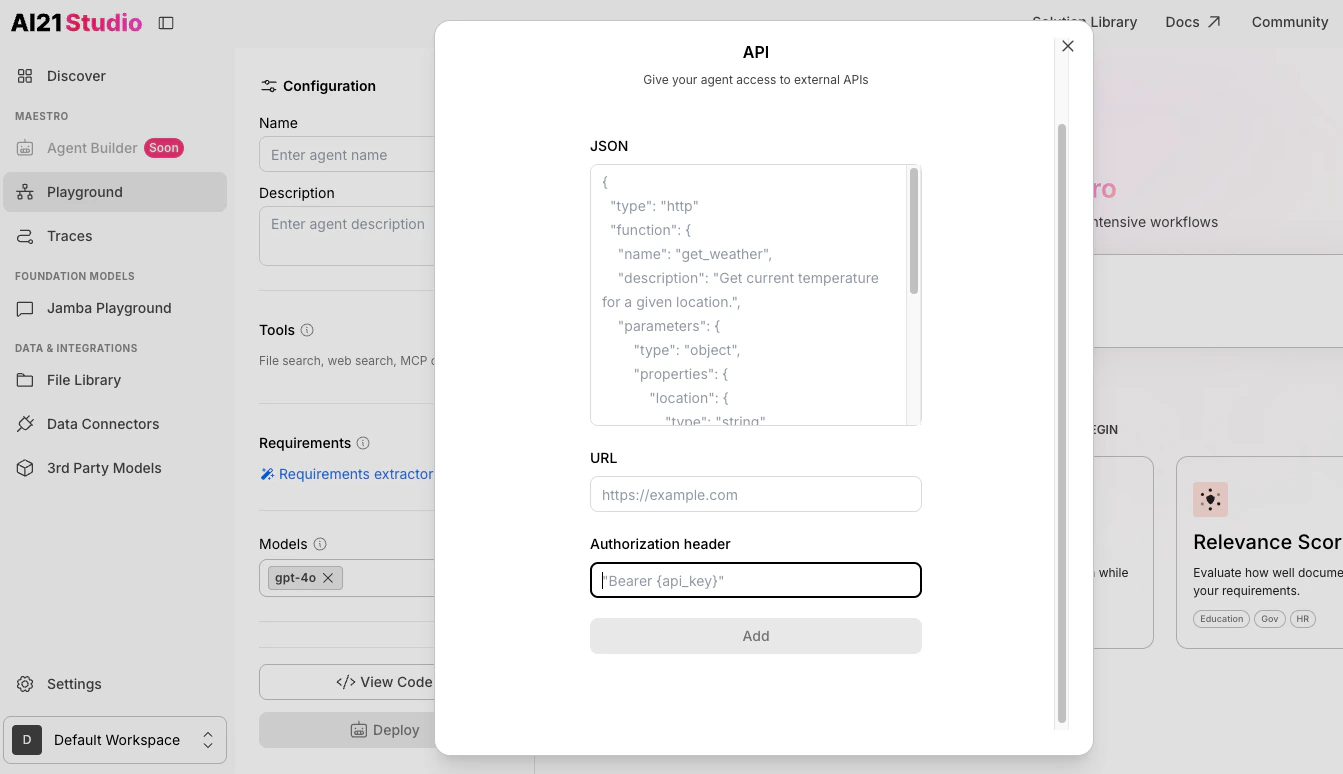
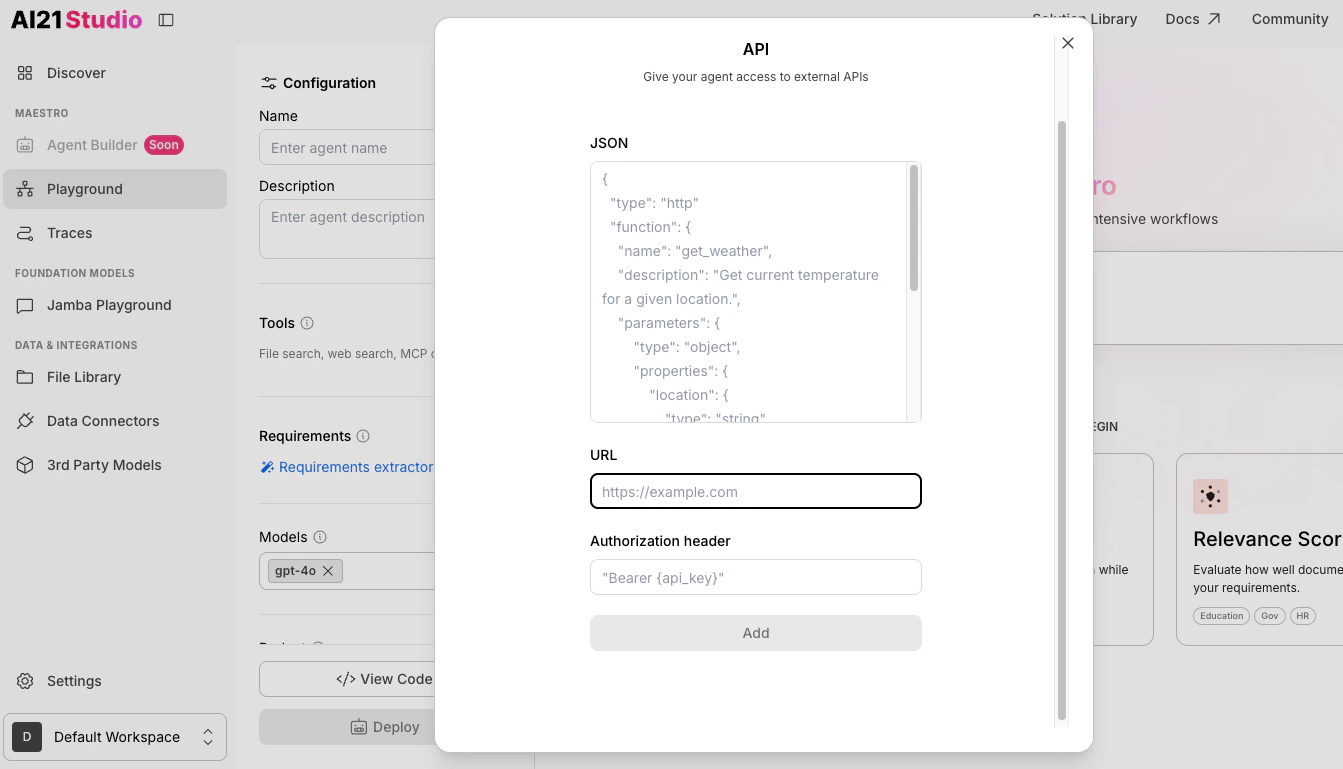 **4.3 Add the Authorization Header** \
If your API requires authentication, enter the **authorization header** \
(for example, `Bearer {api_key}`).
AI21 Maestro does not store your API credentials or any provided header.
**4.3 Add the Authorization Header** \
If your API requires authentication, enter the **authorization header** \
(for example, `Bearer {api_key}`).
AI21 Maestro does not store your API credentials or any provided header.
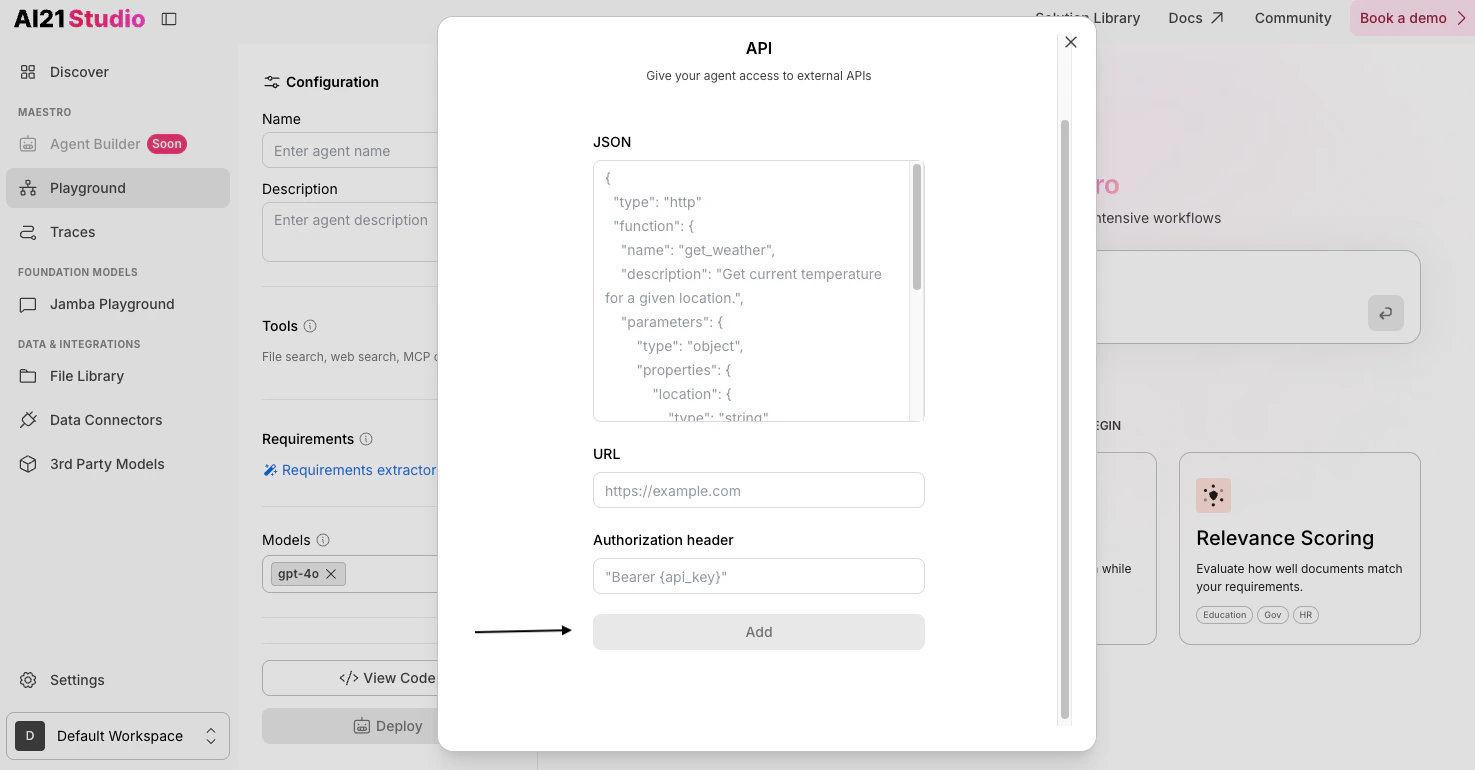
 ### **Step 5: Add the HTTP Tool**
After verifying the tools are correct, click **Add**.
### **Step 5: Add the HTTP Tool**
After verifying the tools are correct, click **Add**.
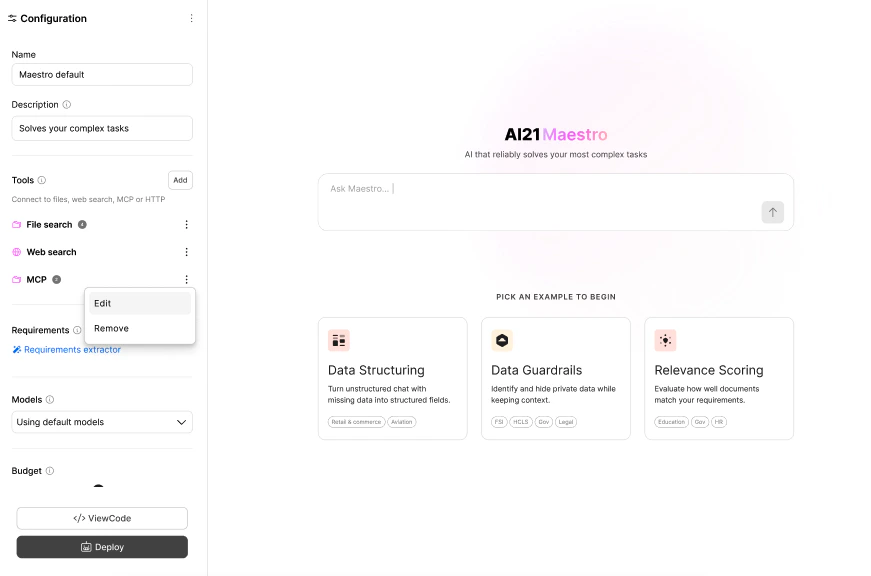
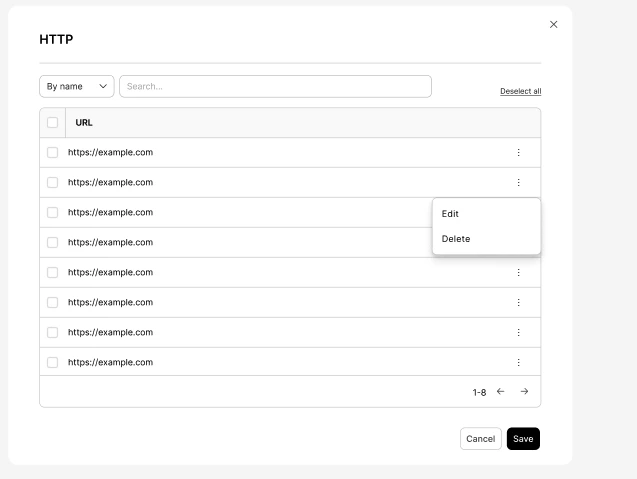
 ### **Step 6 (Optional): Edit HTTP Tools**
Edit an existing MCP tool by following these steps:
1. Click the **⋮** (colon icon).
2. Select **Edit**, make your changes, and click **Save.**
### **Step 6 (Optional): Edit HTTP Tools**
Edit an existing MCP tool by following these steps:
1. Click the **⋮** (colon icon).
2. Select **Edit**, make your changes, and click **Save.**
 ### Next Steps
Use HTTP tools in [AI21 Stuido](https://studio.ai21.com/v2?tab=maestro).
### Next Steps
Use HTTP tools in [AI21 Stuido](https://studio.ai21.com/v2?tab=maestro).