> ## Documentation Index
> Fetch the complete documentation index at: https://docs.ai21.com/llms.txt
> Use this file to discover all available pages before exploring further.
# File Library
> How to Use File Library in AI21 Studio
## Overview
The **File Library** in AI21 Studio serves as a centralized **knowledge base** for uploading, organizing, and managing organizational documents.
Once uploaded, these documents can be used to provide relevant context to Large Language Models (LLMs) when generating responses, enabling more accurate, grounded, and domain-aware outputs.
## Key Capabilities
* **Upload workspace documents** in supported formats (PDF, DOCX, HTML, TXT, Markdown)
* **Define data schemas** to enforce structure and consistency across similar document types
* **Search files** by name, date, ID, labels, or source
* **Select and filter documents** in the File Library
* **Edit file metadata**, including labels and paths
* **Delete outdated or unused files**
## **Upload a Document to File Library**
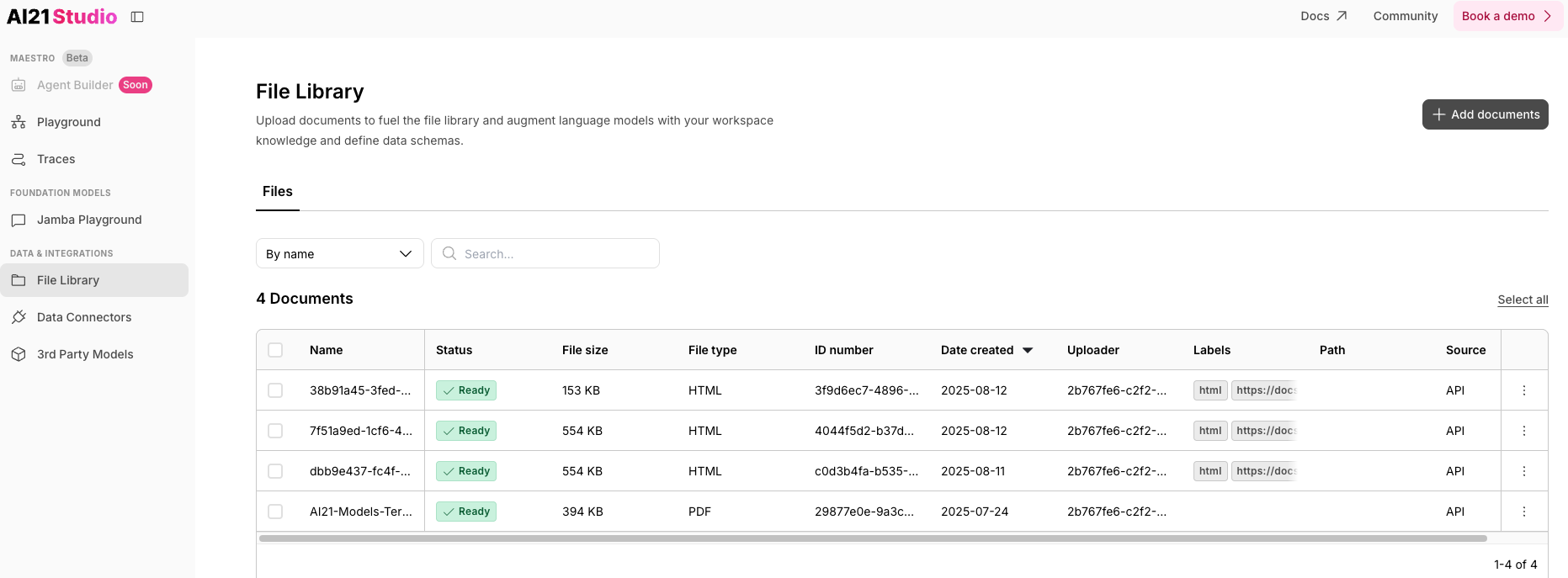
### **Step 1: Open the File Library Section**
Navigate to [File Library](https://studio.ai21.com/v2/workspaces/429d8ce9-0f35-4626-a48c-231d28db34a8/rag-engine) from the left-hand menu in AI21 Studio.
 ### **Step 2: Add a Document**
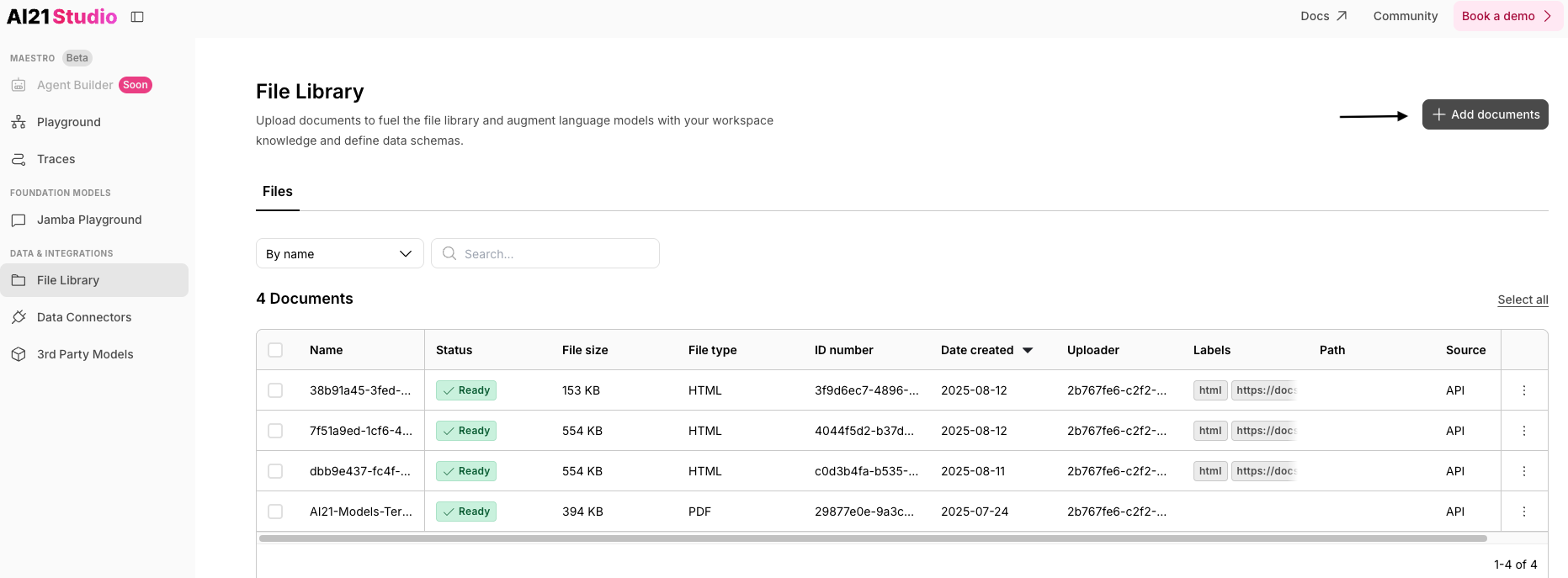
Click the **Add Document** button.
### **Step 2: Add a Document**
Click the **Add Document** button.
 ### **Step 3: Select One or More Files to Upload**
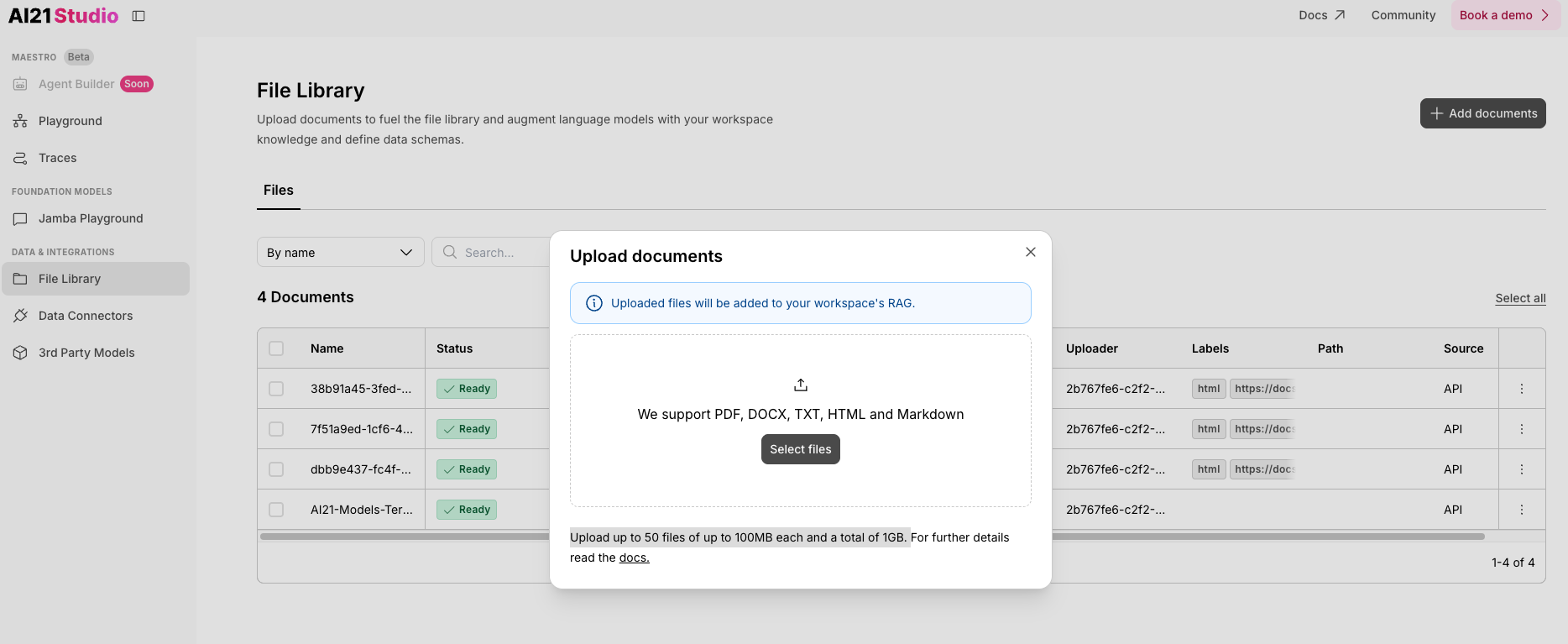
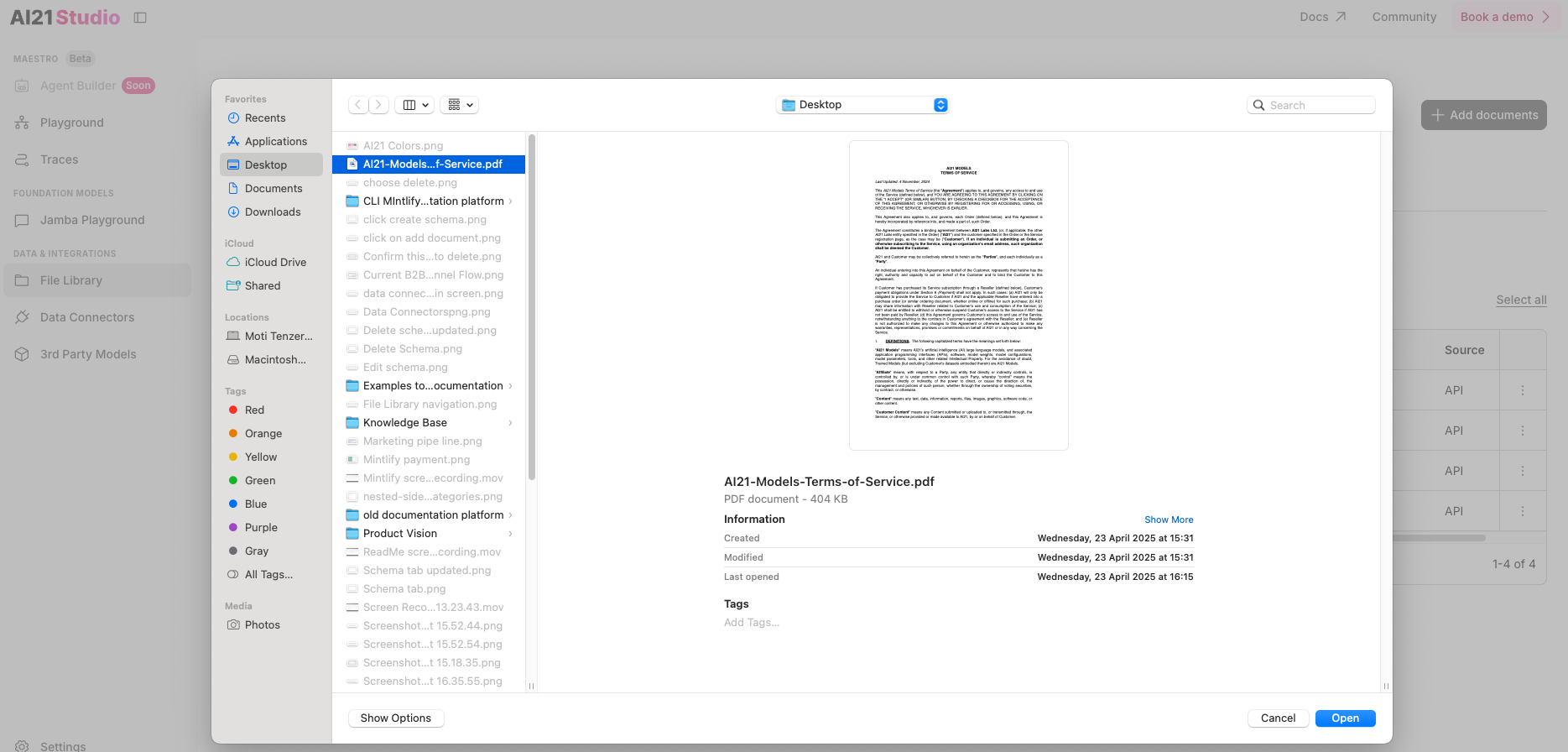
Supported file formats: **PDF, DOCX, TXT, HTML**, and **Markdown**.
You can upload up to **50 files,** each up to **100MB** in size, with a total limit of **1GB**.
### **Step 3: Select One or More Files to Upload**
Supported file formats: **PDF, DOCX, TXT, HTML**, and **Markdown**.
You can upload up to **50 files,** each up to **100MB** in size, with a total limit of **1GB**.
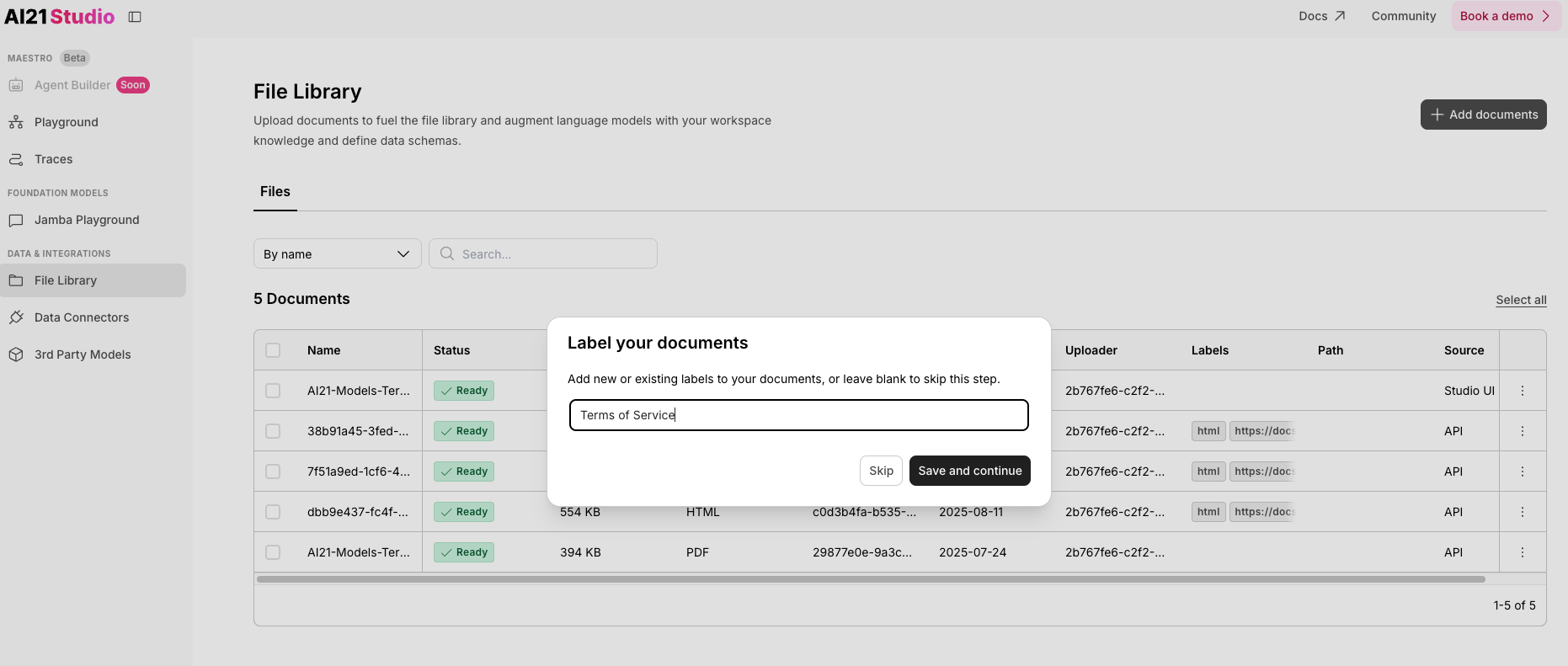
 ### **Step 4: Label Your Documents**
Add new or existing labels to your documents, or leave the field blank to skip this step.\
Type labels and press enter to add.
### **Step 4: Label Your Documents**
Add new or existing labels to your documents, or leave the field blank to skip this step.\
Type labels and press enter to add.
 ### **Step 5: Connect**
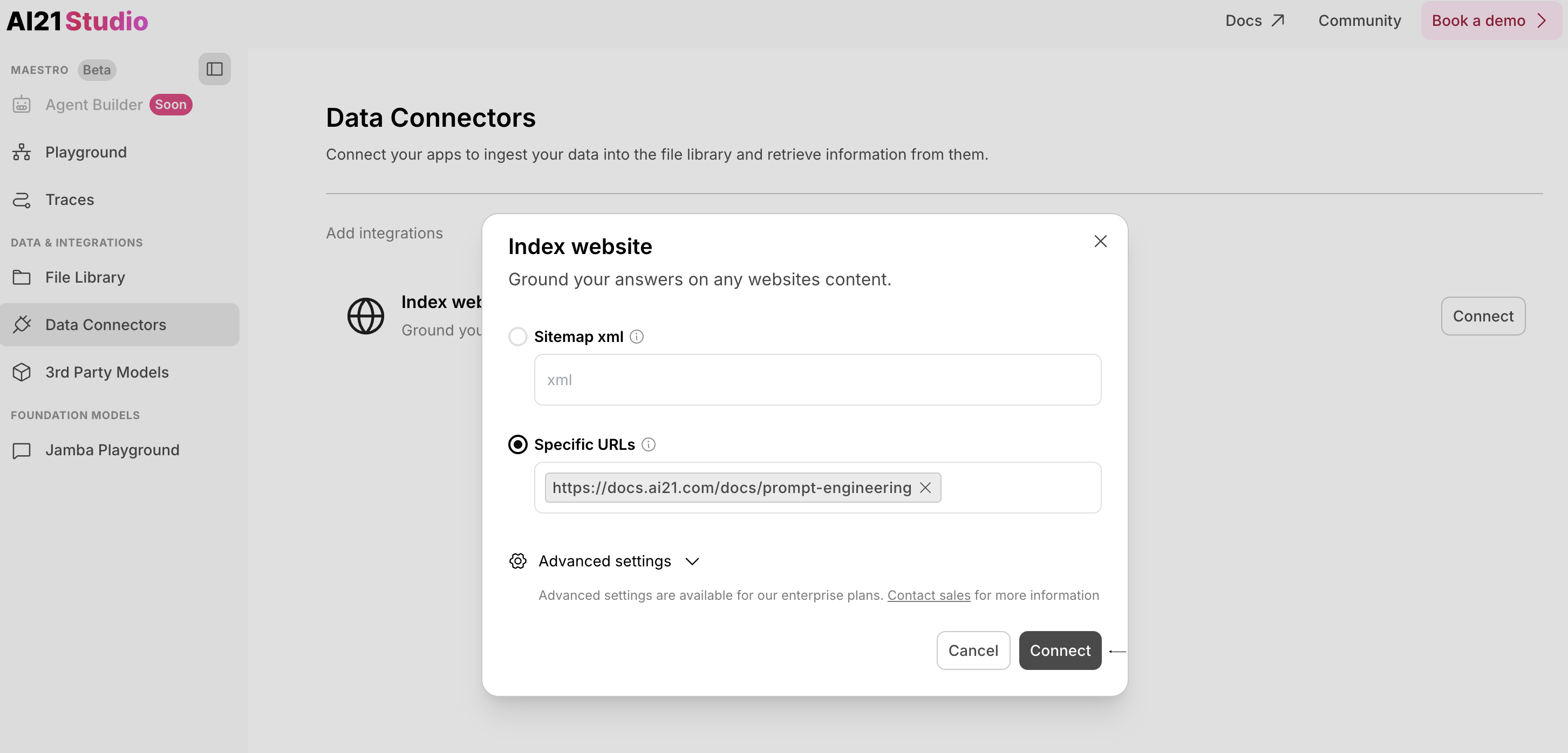
Click **Connect** to start ingesting the data.
### **Step 5: Connect**
Click **Connect** to start ingesting the data.
 ### **Step 6: View the New Files in File Library**
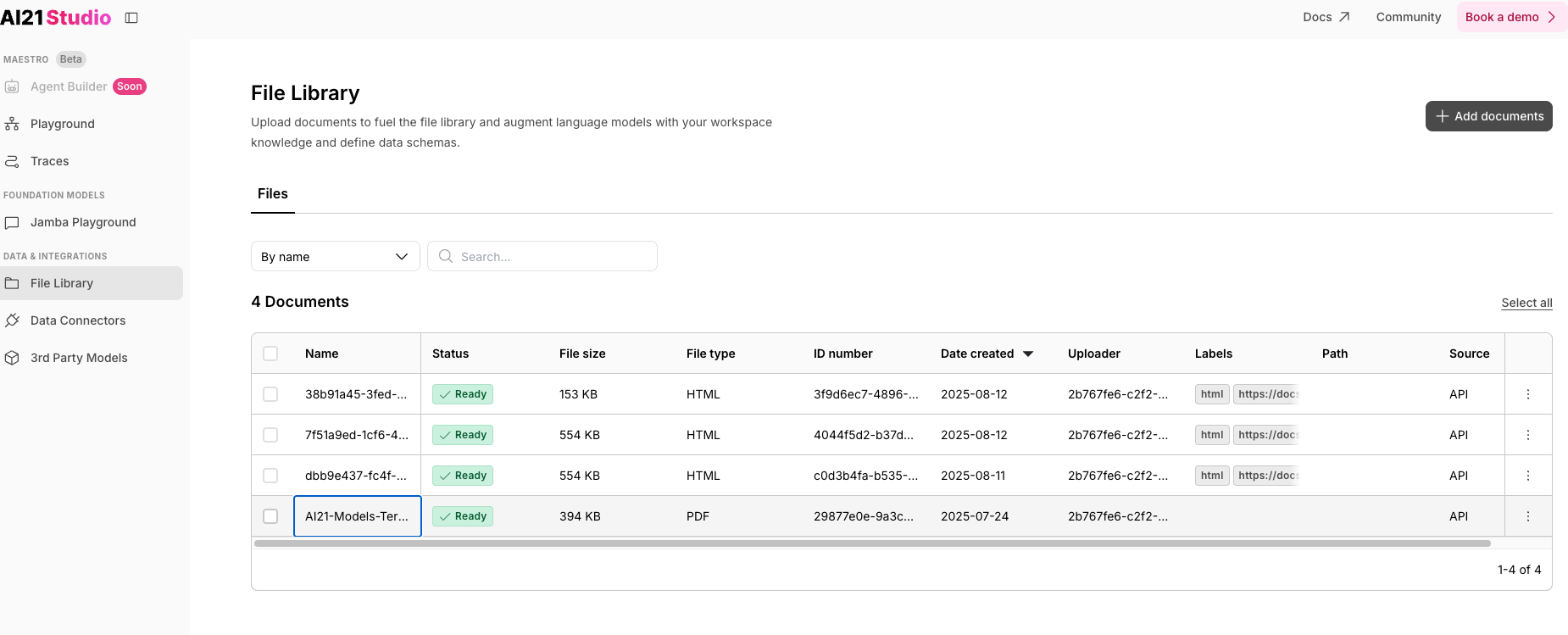
Once uploaded, the new documents will appear in the list.
### **Step 6: View the New Files in File Library**
Once uploaded, the new documents will appear in the list.
 ##
## Search and Filter Files
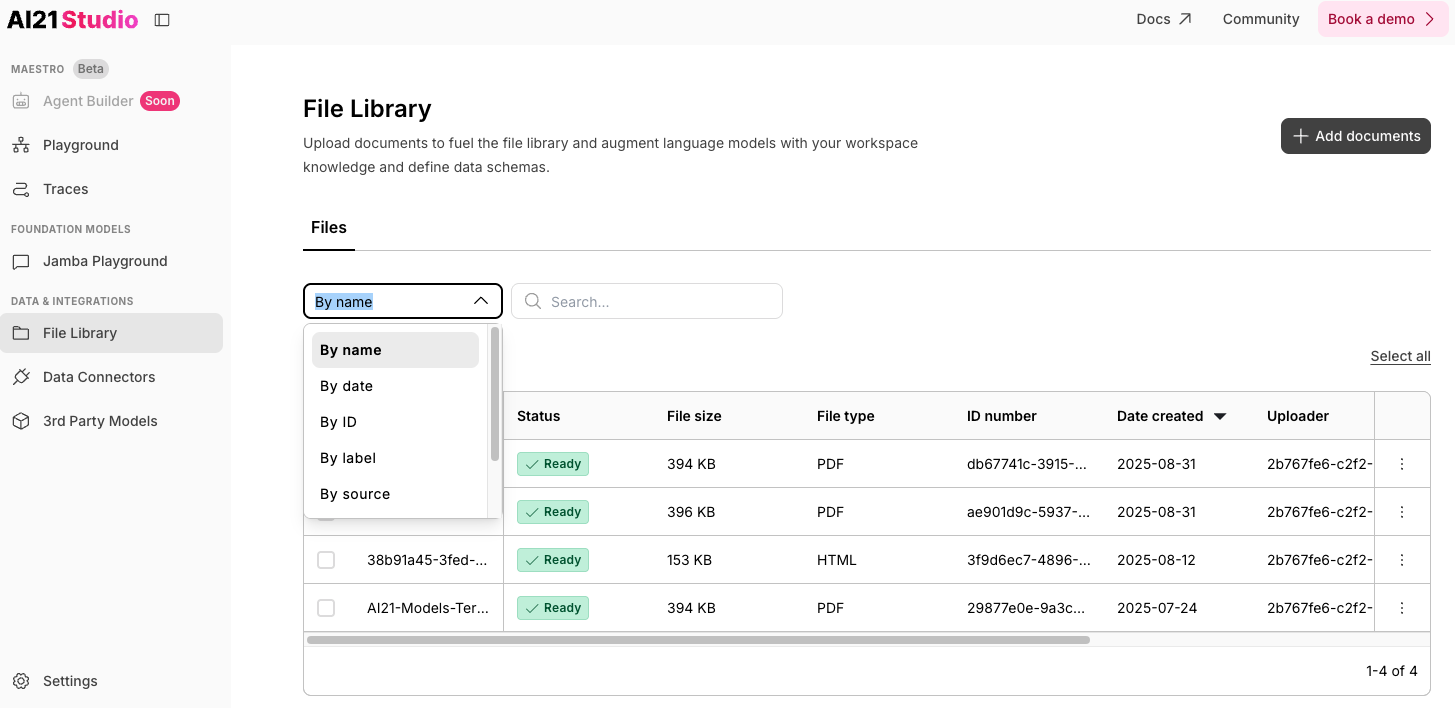
### Step 1: Choose a Filter
Select how you want to filter the files from the dropdown menu. \
You can filter files by:
* Name
* Date
* ID
* Label
* Source
##
## Search and Filter Files
### Step 1: Choose a Filter
Select how you want to filter the files from the dropdown menu. \
You can filter files by:
* Name
* Date
* ID
* Label
* Source
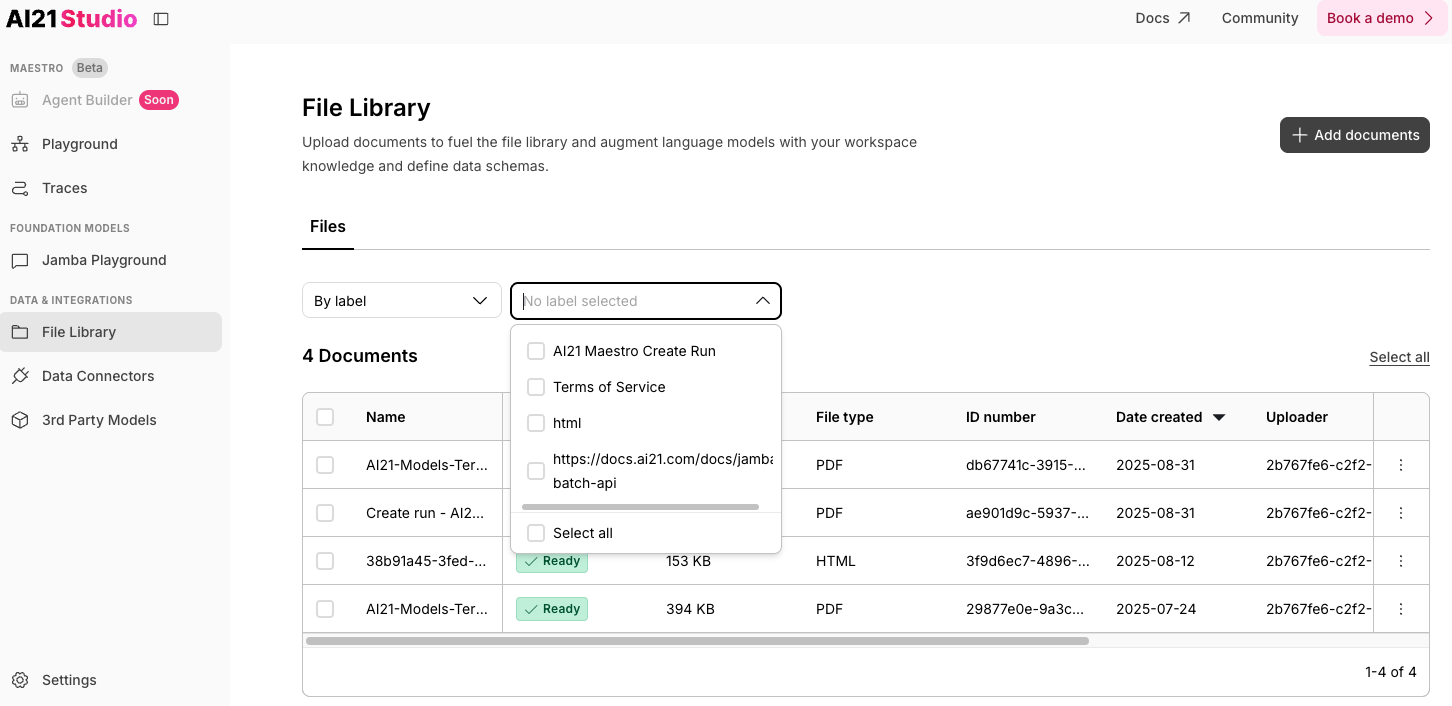
 ### Step 2: Search for Specific Documents
Fill in the search field based on your selected filter.\
\
For example:
* If you filter by **label**, the search field becomes a dropdown showing all available labels.
### Step 2: Search for Specific Documents
Fill in the search field based on your selected filter.\
\
For example:
* If you filter by **label**, the search field becomes a dropdown showing all available labels.
 If you filter by **date**, enter a date, and the matching results will automatically appear.
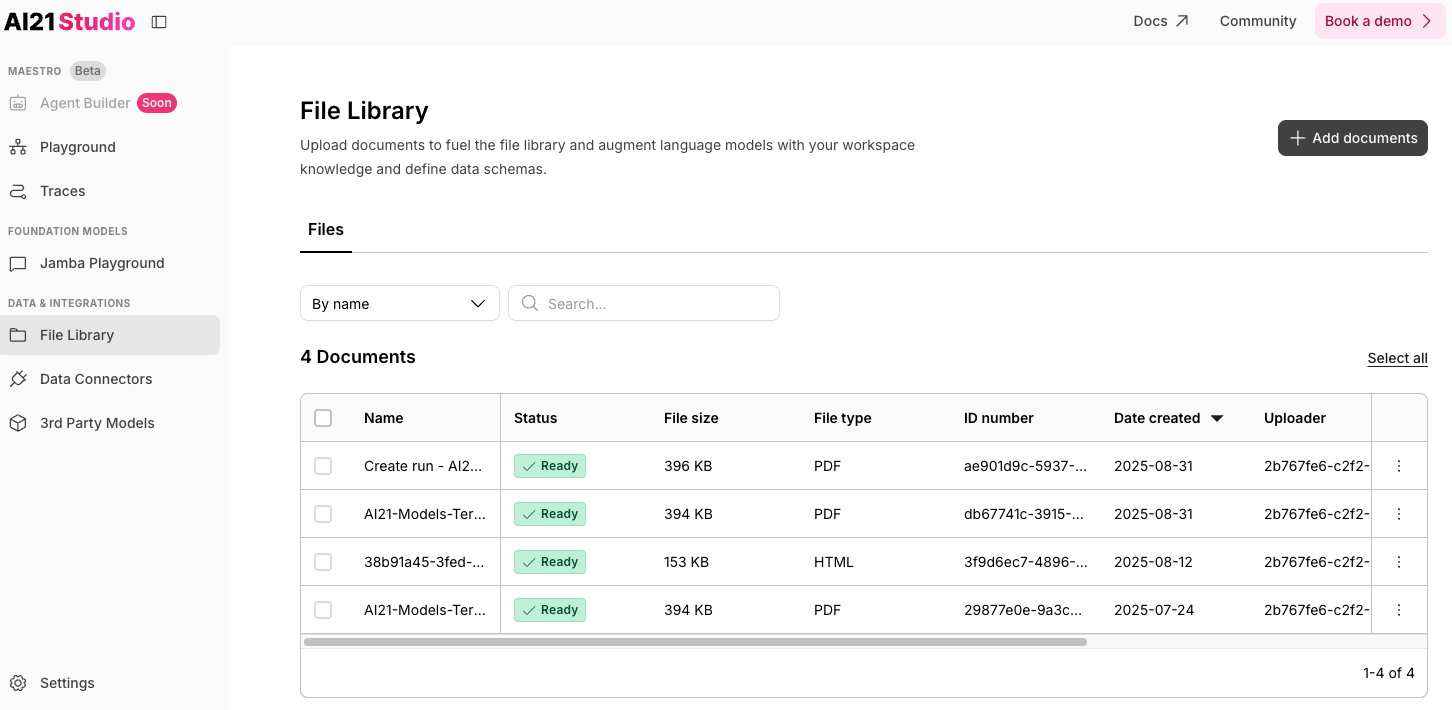
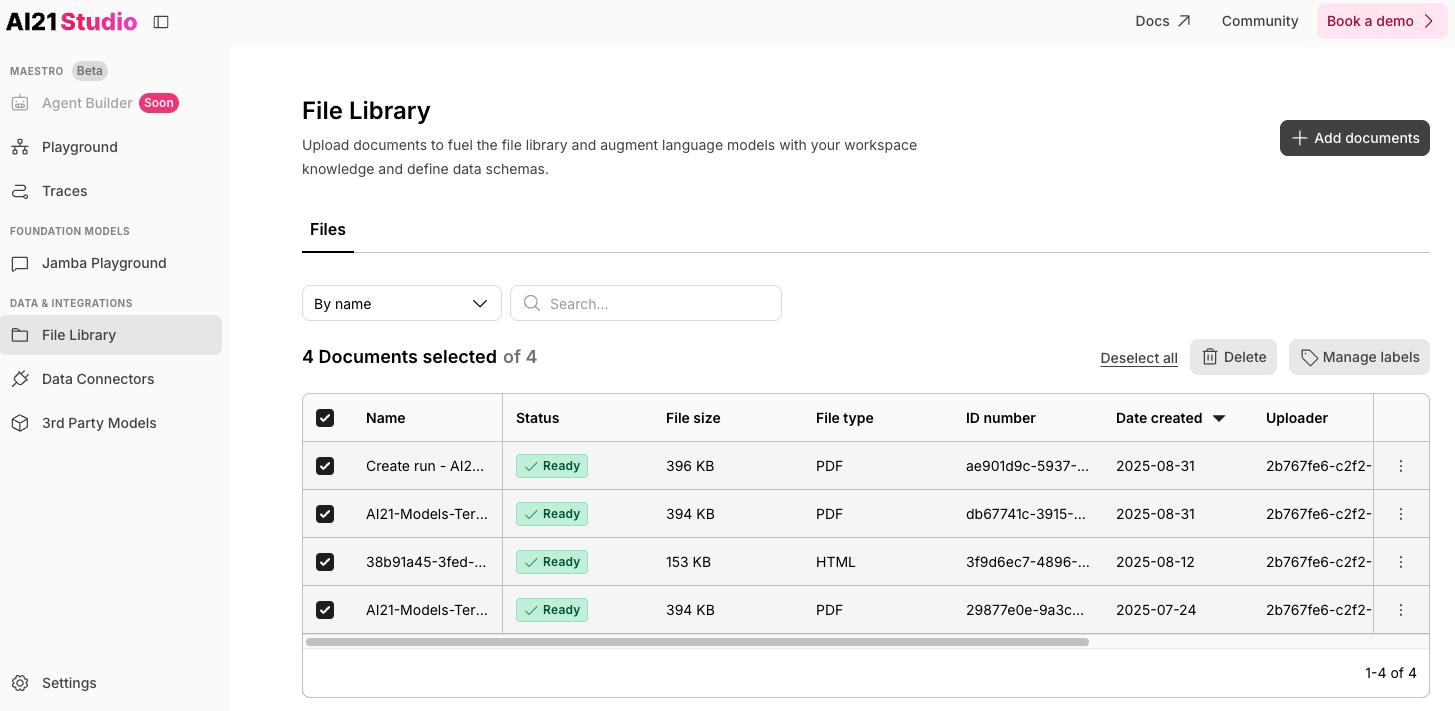
### Optional: Select all documents
To select all documents in the File Library, click **Select All**.
If you filter by **date**, enter a date, and the matching results will automatically appear.
### Optional: Select all documents
To select all documents in the File Library, click **Select All**.
 ## Delete Files From File Library
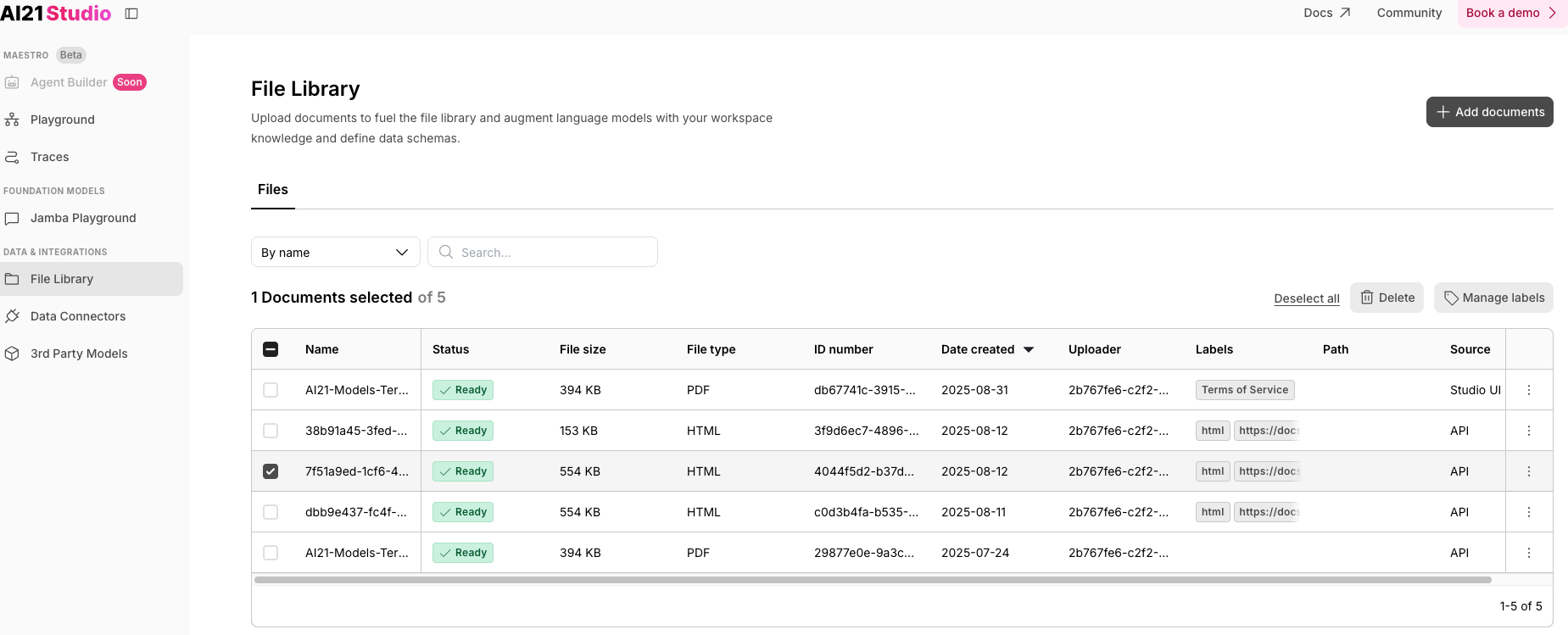
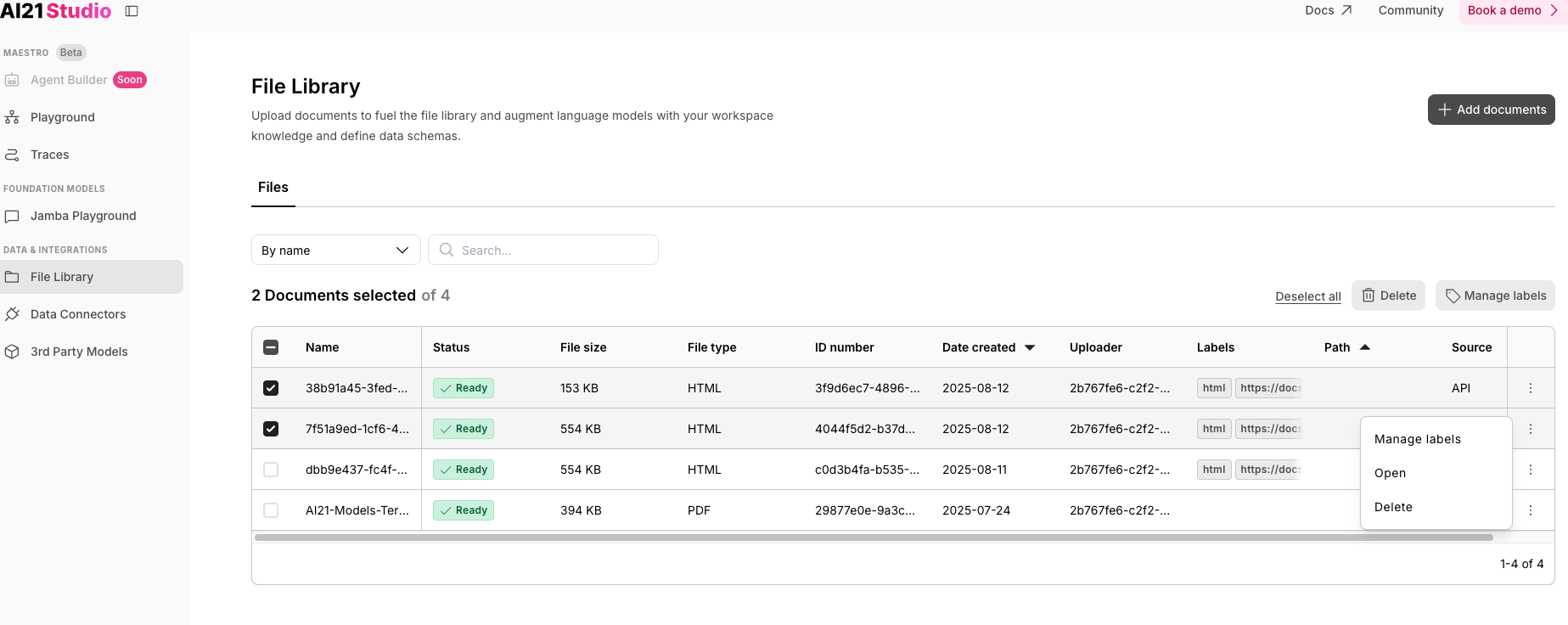
### **Step 1:** Locate and Select the File(s) You Want to Delete
In the table, select the file you want to delete from the \*\*Name \*\*column.
## Delete Files From File Library
### **Step 1:** Locate and Select the File(s) You Want to Delete
In the table, select the file you want to delete from the \*\*Name \*\*column.
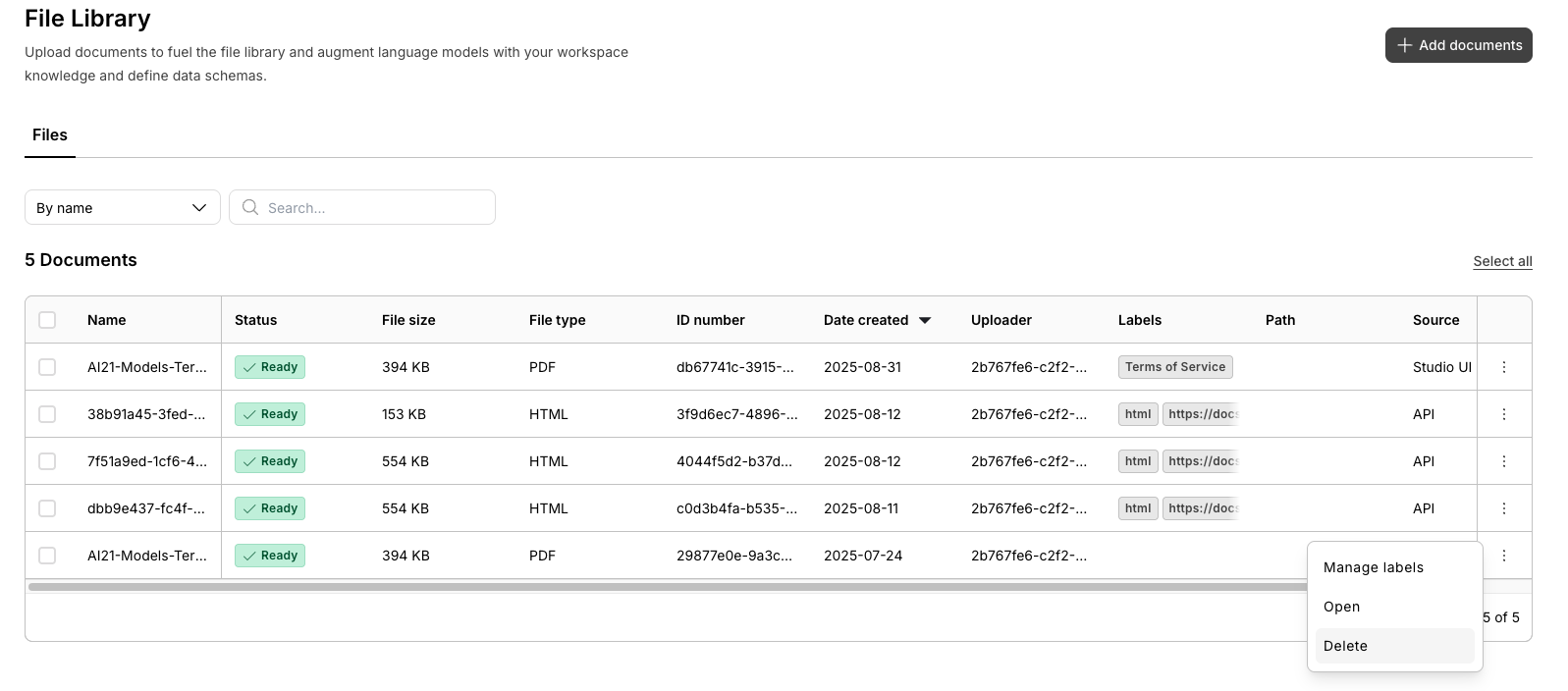
 ### **Step 2:** Delete the Selected Files
* On the right side of the table, click the (⋮) icon.
### **Step 2:** Delete the Selected Files
* On the right side of the table, click the (⋮) icon.
 * Click **Delete**.
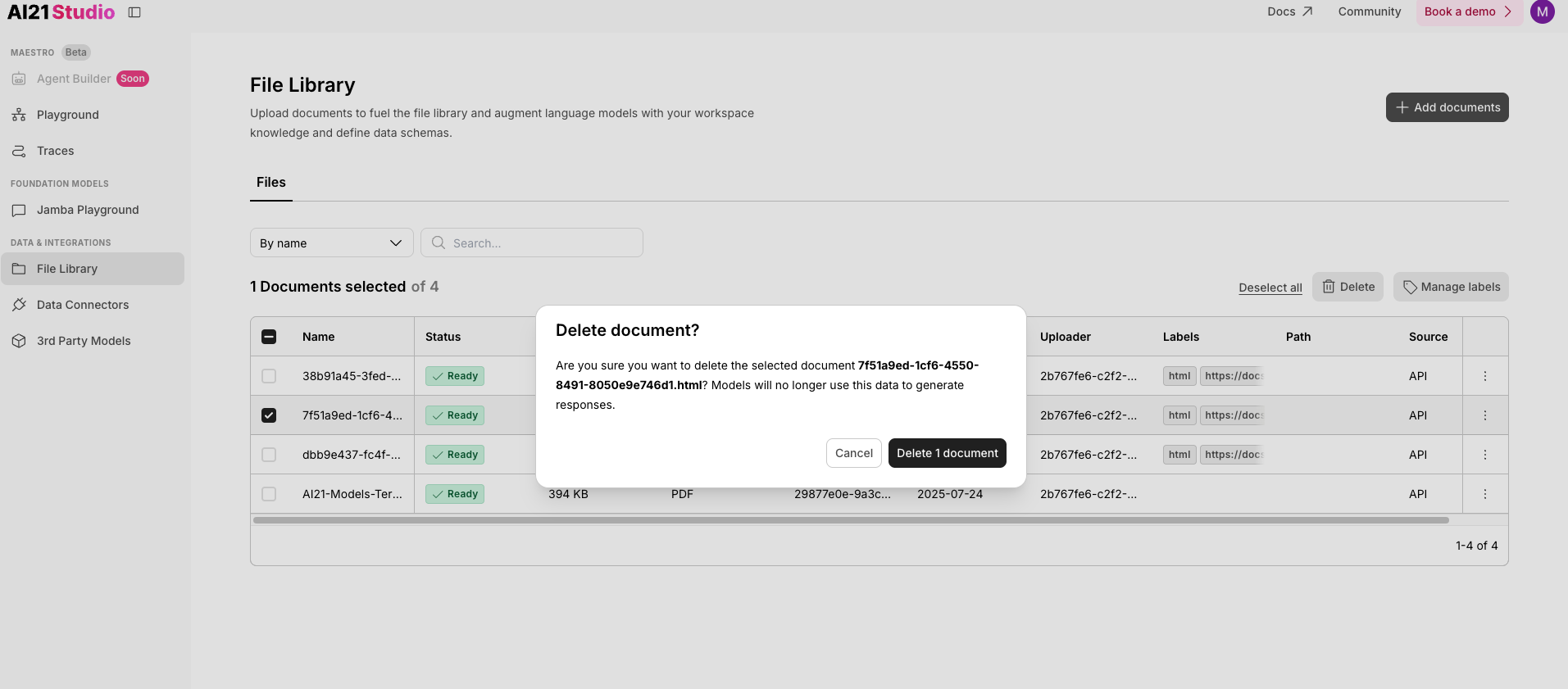
 ### **Step 3:** Confirm Deletion
A confirmation dialog will appear. Choose whether to delete the file or cancel the action.
### **Step 3:** Confirm Deletion
A confirmation dialog will appear. Choose whether to delete the file or cancel the action.
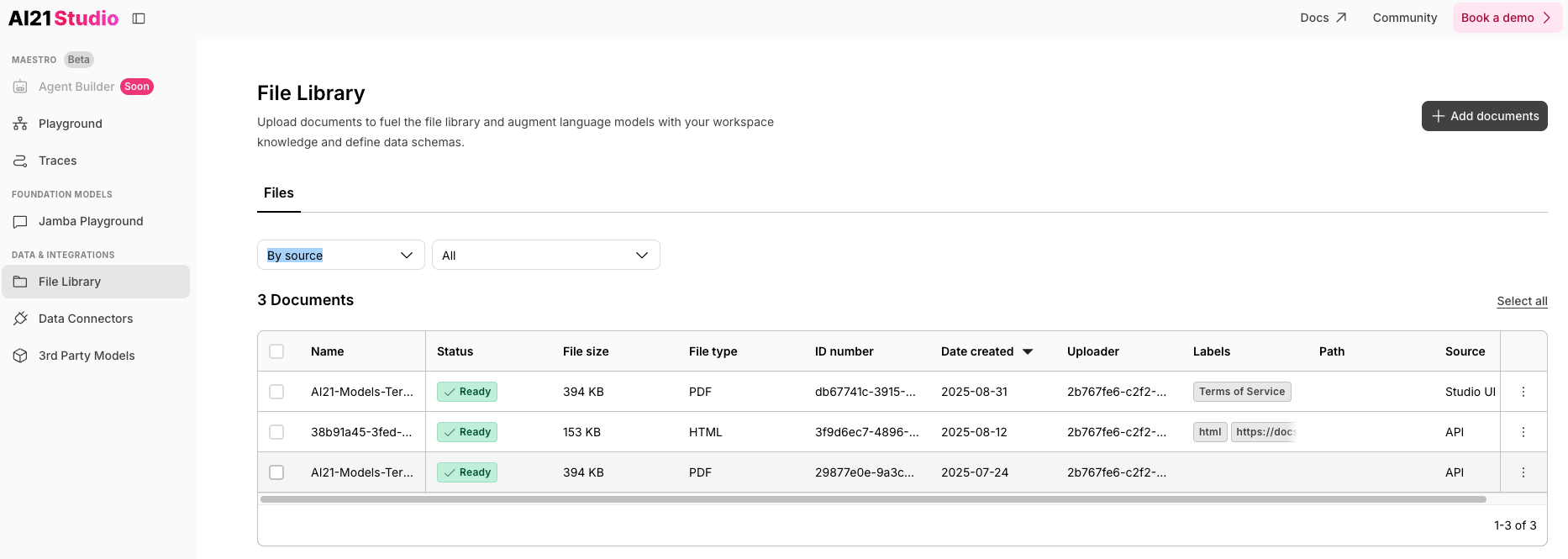
 ### Step 4: View the Updated Document List
After deleting the selected file(s), the updated document list will be displayed in the File Library.
### Step 4: View the Updated Document List
After deleting the selected file(s), the updated document list will be displayed in the File Library.
 ## **Next steps**
Check the API Refernce:
* [Upload Workspace Files](https://docs.ai21.com/reference/manage-library-ref/upload-workspace-files)
* [**List Library Files**](https://docs.ai21.com/reference/manage-library-ref/list-library-files)
* [**Update File**](https://docs.ai21.com/reference/manage-library-ref/update-file)
* [**Delete File**](https://docs.ai21.com/reference/manage-library-ref/delete-file)
Use the File Library in [AI21 Studio](https://studio.ai21.com/v2?tab=file_library).
## **Next steps**
Check the API Refernce:
* [Upload Workspace Files](https://docs.ai21.com/reference/manage-library-ref/upload-workspace-files)
* [**List Library Files**](https://docs.ai21.com/reference/manage-library-ref/list-library-files)
* [**Update File**](https://docs.ai21.com/reference/manage-library-ref/update-file)
* [**Delete File**](https://docs.ai21.com/reference/manage-library-ref/delete-file)
Use the File Library in [AI21 Studio](https://studio.ai21.com/v2?tab=file_library).