> ## Documentation Index
> Fetch the complete documentation index at: https://docs.ai21.com/llms.txt
> Use this file to discover all available pages before exploring further.
# Create an API key
## Get an API key
This page explains how to create, view, and manage API keys for your workspace in [AI21 Studio](https://studio.ai21.com/v2?tab=maestro).
### **Step 1: Sign in to AI21 Studio**
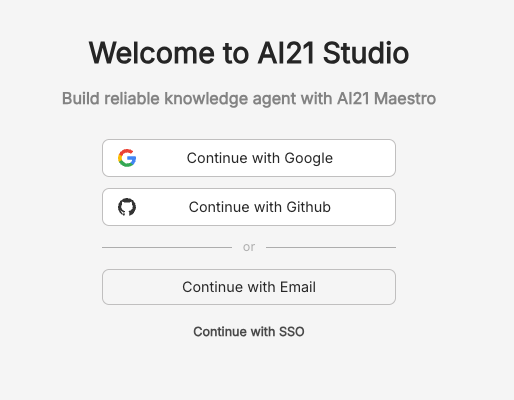
You can sign in using your email address, Google account, GitHub account, or SSO.
 ### **Step 2: Open Settings**
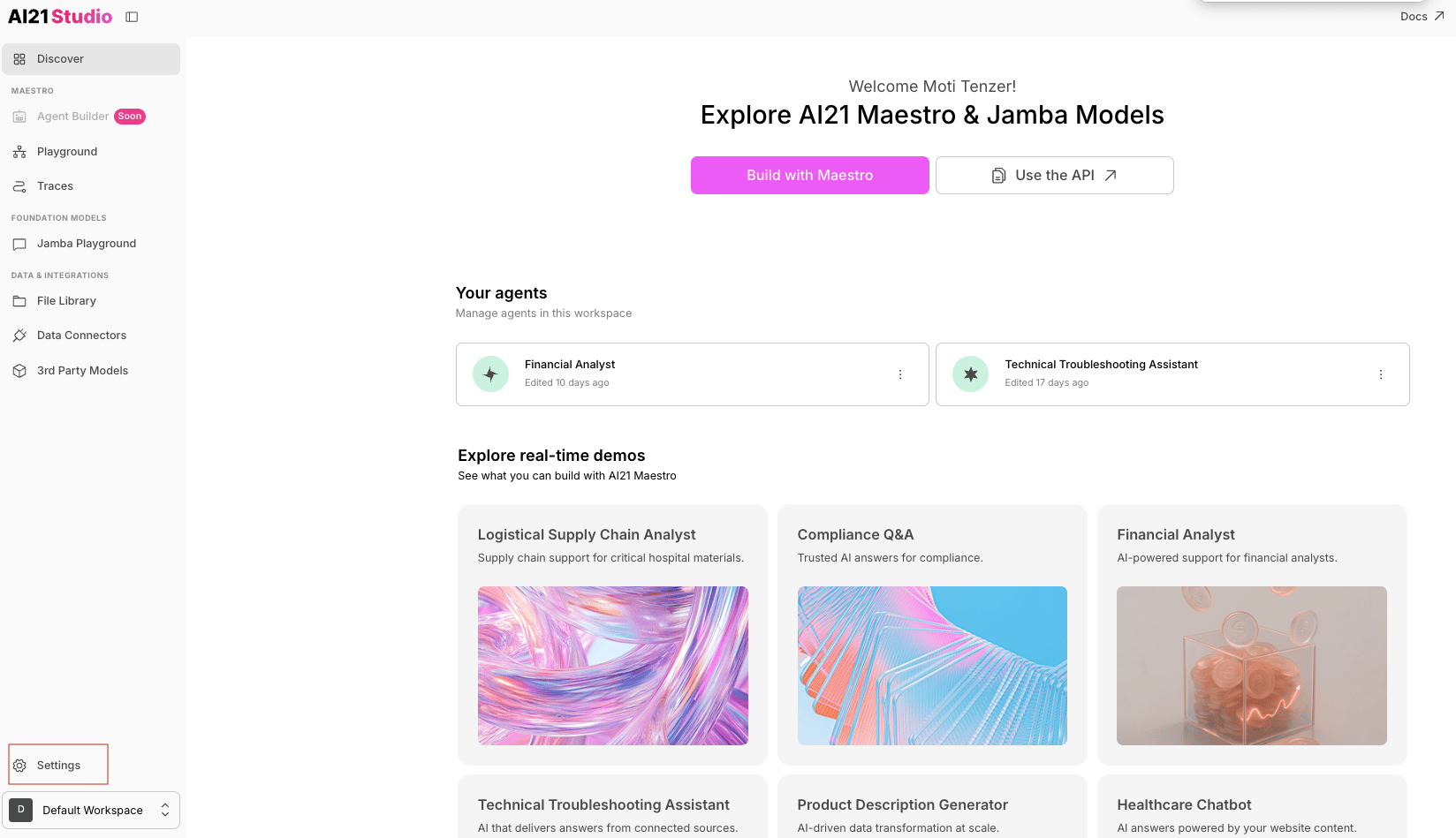
In the bottom-left corner of the AI21 Studio sidebar, click **Settings**.
### **Step 2: Open Settings**
In the bottom-left corner of the AI21 Studio sidebar, click **Settings**.
 ### Step 3: Open the API Keys tab
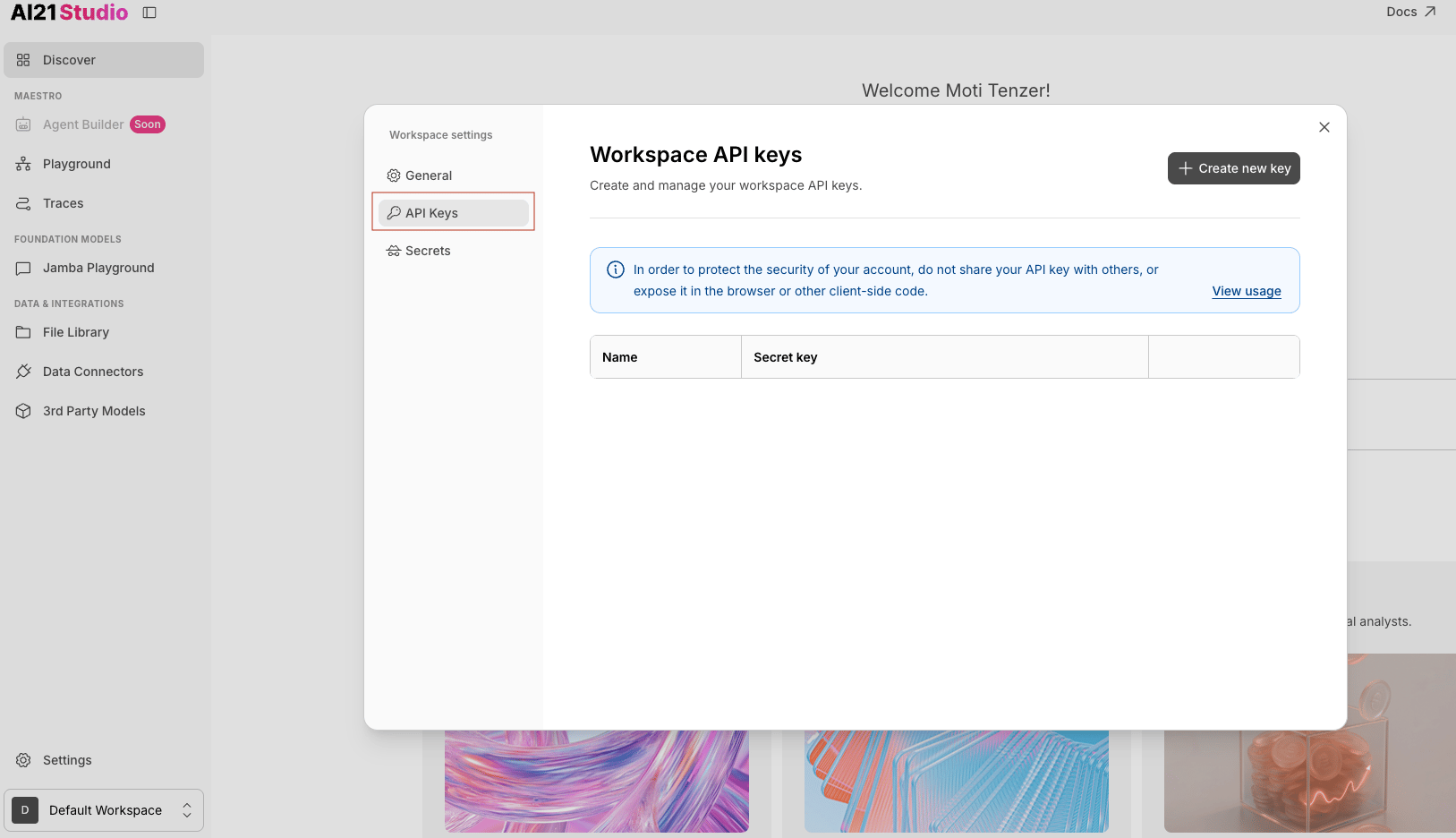
In the Workspace Settings panel, click the **API Keys** tab in the left-hand sidebar.
### Step 3: Open the API Keys tab
In the Workspace Settings panel, click the **API Keys** tab in the left-hand sidebar.
 ### Step 4: Create a New API Key
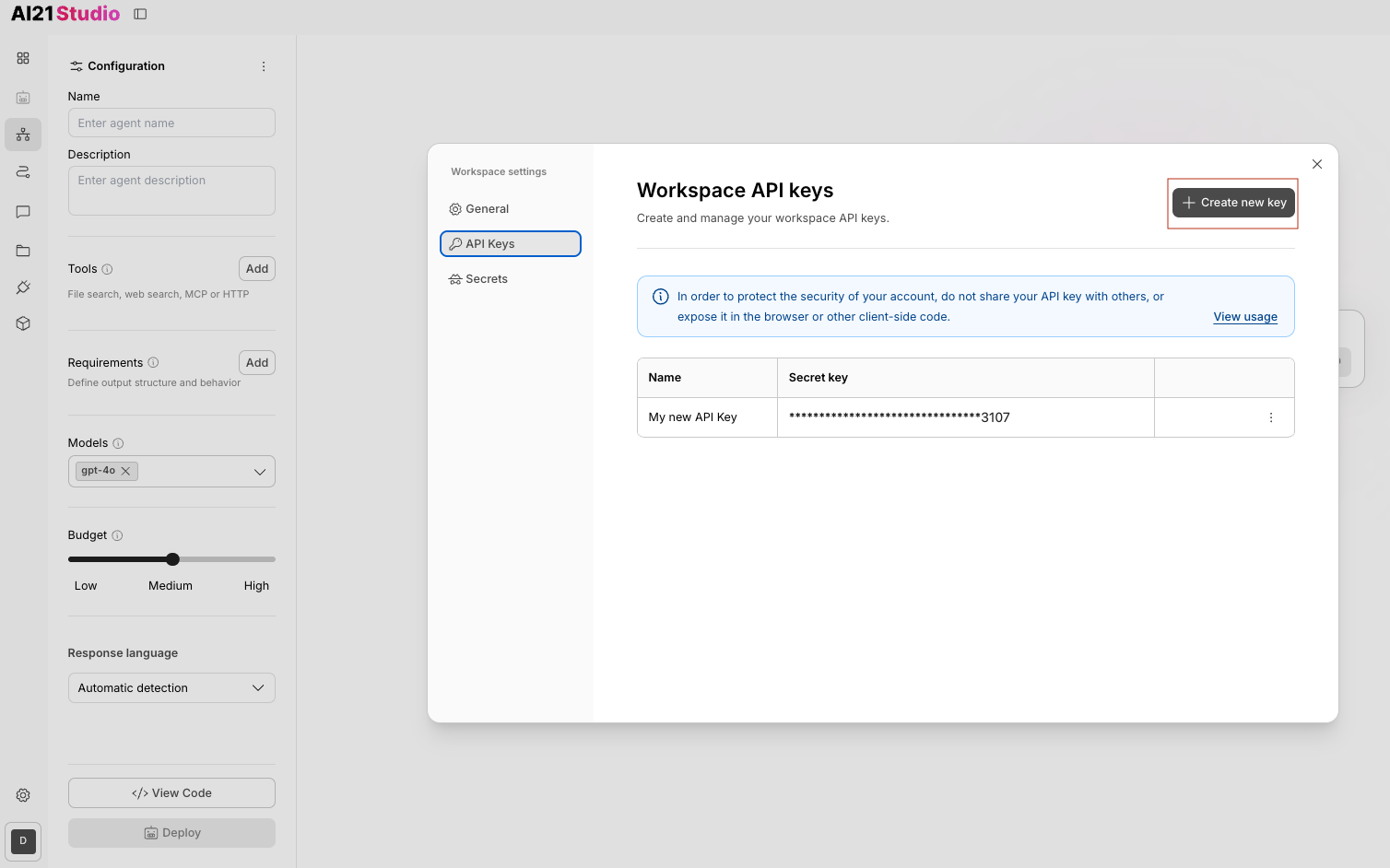
Click the **Create new key** button at the top-right corner of the Workspace Settings panel.
### Step 4: Create a New API Key
Click the **Create new key** button at the top-right corner of the Workspace Settings panel.
 ### Step 5: Name Your API Key
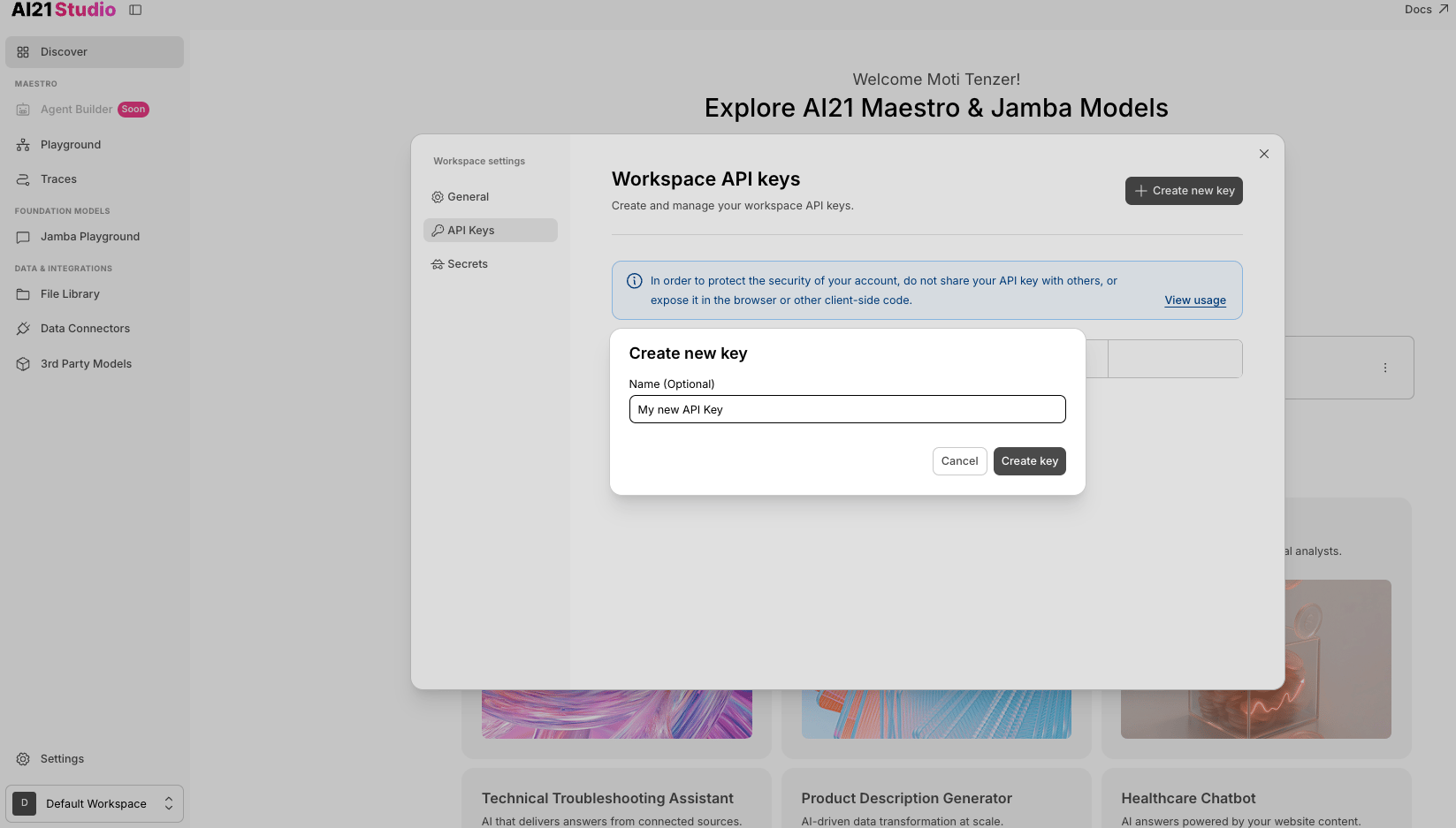
You may give your new key a name to help organize your workspace keys.\
If you prefer not to name it, leave the field blank and click **Create key**.\
To cancel, click **Cancel.**
### Step 5: Name Your API Key
You may give your new key a name to help organize your workspace keys.\
If you prefer not to name it, leave the field blank and click **Create key**.\
To cancel, click **Cancel.**
 ### Step 6: Save Your API Key
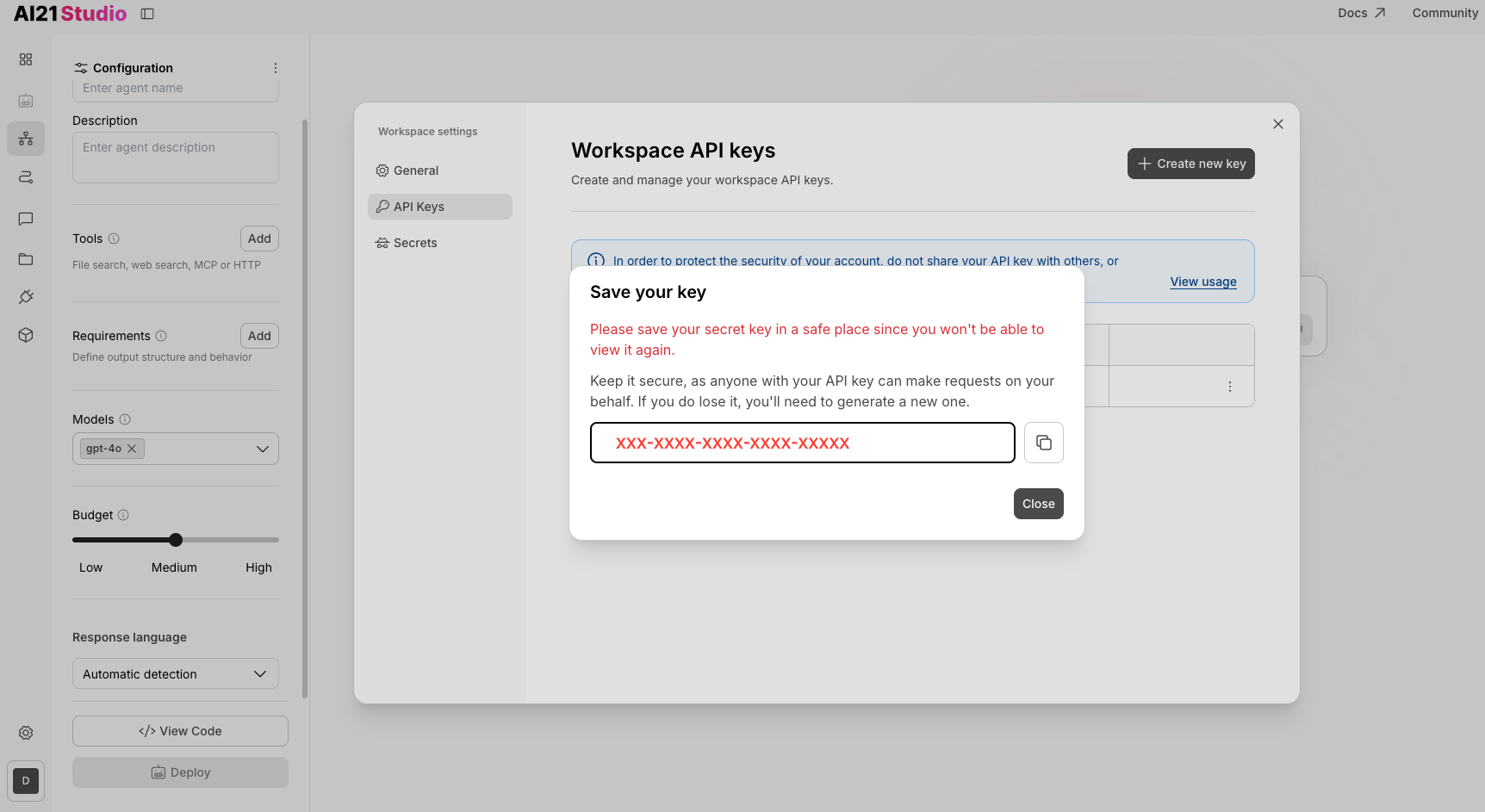
Your new API key is now visible.\
Copy and save it in a secure location, **you won’t be able to view it again**.\
Anyone with your key can make requests on your behalf, so keep it private.\
If you lose it, you’ll need to generate a new one.
### Step 6: Save Your API Key
Your new API key is now visible.\
Copy and save it in a secure location, **you won’t be able to view it again**.\
Anyone with your key can make requests on your behalf, so keep it private.\
If you lose it, you’ll need to generate a new one.
 ### Step 7: Manage Your API Keys
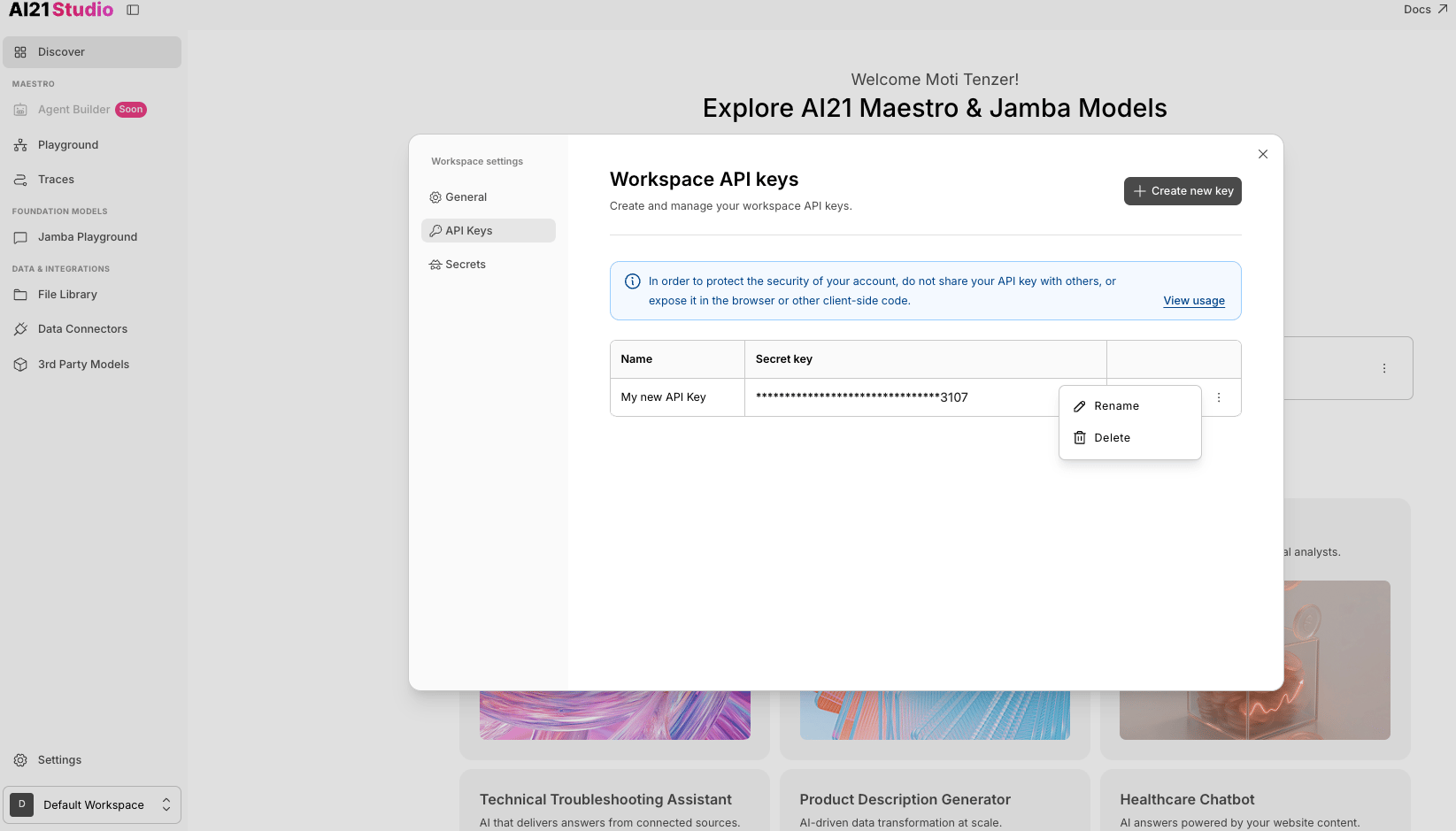
You can view and manage all workspace API keys in the **Workspace API Keys** section.\
You’ll see each key’s name and the last few characters (full keys are never shown again).\
From this page, you can rename or delete existing keys at any time.
### Step 7: Manage Your API Keys
You can view and manage all workspace API keys in the **Workspace API Keys** section.\
You’ll see each key’s name and the last few characters (full keys are never shown again).\
From this page, you can rename or delete existing keys at any time.